Installing AutoCAD 2000 on Windows 10, Windows 8 or Windows 7 can stop with “This app can’t run on your PC” or a “Wrong OS” setup error. This guide explains the Longbow Converter installation procedure, the required installation folder, and fixes for common startup and plotting problems.
For Windows 11, use our AutoCAD 2000 on Windows 11 guide. For the LT edition, follow the AutoCAD LT 2000 installation guide.
Before you start
- Have your original AutoCAD 2000 installation media and valid license available. The update downloads below do not include the full AutoCAD 2000 program.
- Back up your drawings and custom settings before making changes.
- Follow the folder paths exactly, especially
c:\acad2000, and allow time for the legacy installer to open. - If your license uses a hardware dongle, check compatibility with Longbow Software Support before proceeding; the installer procedure alone does not establish dongle compatibility.
Jump to: Installation steps · Express Tools · Object enablers · Service packs · 3D graphics update · Troubleshooting
AutoCAD 2000 setup errors
These are two of the errors you may encounter when starting the original installer:
Windows 16bit setup error – This app can’t run on your PC
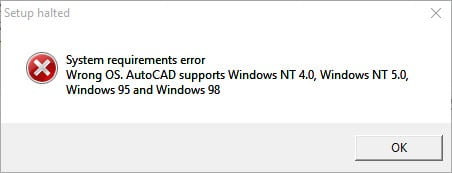
The installer may also display “Setup Halted” and list older supported Windows versions:
Error while trying to install AutoCAD 2000
How to install AutoCAD 2000
Follow the steps in order, including the folder names and paths. Wait for the Converter to finish processing before rebooting.
- Obtain the Longbow Converter before starting.
- Use an account with permission to install software. Keep Windows User Account Control enabled and review any permission prompt before allowing the installer to continue. See Microsoft’s guidance on User Account Control.
- Now, start the Longbow Converter tool by double clicking the Longbow Converter shortcut on your Desktop… .
- Insert your AutoCAD 2000 CD
- Select the 2nd tab titled “Old AutoCAD Installer Reviver” by clicking on it
- Next, using the ‘…’ button select your AutoCAD 2000 CD
- Now click the “Run Old Installer” button.
- Read, understand and follow all the prompts.
- For AutoCAD 2000, the Migration Wizard almost instantly pops up
- simply click “Install 2000” as normal.
- Now, I know it’s unheard of these days, but at this pointexpect to wait at least 45 minutes for your AutoCAD 2000 setup.exe program to fully appear – please be patient
- Once the setup starts, stop and read the next step…
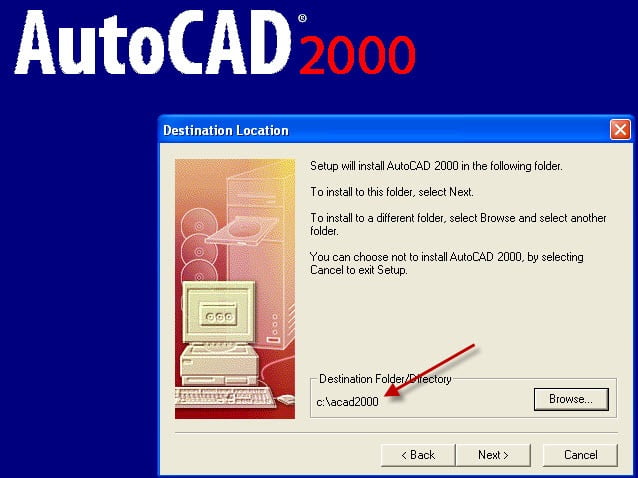
- In the setup program, navigate through each setup dialog as normal, except when you get to the installation folder, **it’s vitally important to make sure you install to c:\acad2000 (not Program Files (x86)\AutoCAD 2000 as usually prompted)** e.g.
Setting AutoCAD 2000 custom install directory to c:\acad2000
- Once you have set the Destination Folder to c:\acad2000, install as normal
- Ignore the error message that the shortcut cannot be created “Cannot create folder AutoCAD 2000“, you will need to create the program shortcut by hand once the installation is finished.
- Do not reboot if prompted to do so
- Once setup has completed…
- Make sure to fully close the setup program
- Back in the Converter app, make sure it has completed the final stage of processing using the “Old AutoCAD Program Reviver” tab – it should display “SUCCESS” in green…
- Now Reboot your PC
- Your AutoCAD 2000 is ready to run as it is right now, simply use Windows Explorer, navigate to c:\acad2000 and double click acad.exe (if you want a shortcut on the Desktop you will have to manually create it).
If you rely on AutoCAD 2000 Express Tools or you are seeing “Missing Application: RTEXT” Proxy dialog when you are loading on a drawing, here are the instructions for installing Express Tools Volume 9 for AutoCAD 2000
Installing AutoCAD 2000 ObjectDBX Classes Object Enabler
- Download AutoCAD 2000 ObjectDBX Classes Object Enabler from here
- Unzip to folder path c:\Autodesk
- Start the Converter
- select the 2nd tab named “Old AutoCAD Installer Reviver“
- Using the “…” button, pick the c:\Autodesk\AutoCAD 2000 – ObjectDBX Classes Object Enabler folder
- click ‘Run Old Installer‘
- Install as normal
Installing AutoCAD 2000 AEC Object Enabler 2.11
- Download AutoCAD 2000 AEC Object Enabler 2.11 from here
- Unzip your newly downloaded sp to folder path c:\Autodesk\AutoCAD2000-AEC211
- Start the Converter
- select the 2nd tab named “Old AutoCAD Installer Reviver“
- Using the “…” button, pick the c:\Autodesk\AutoCAD2000-AEC211 folder
- click ‘Run Old Installer‘
- Wait for the setup to appear, it could take up to 45 minutes, then install as normal
Installing AutoCAD 2000 Architectural Object Enabler 3.02
- Download AutoCAD 2000 Architectural Object Enabler 3.02 from here
- Unzip and install as normal
Installing AutoCAD 2000 Service Pack 1
- Download AutoCAD 2000 sp1 from here
- Unzip the downloaded zip file to folder path c:\Autodesk\sp
- Start the Converter
- select the 2nd tab named “Old AutoCAD Installer Reviver“
- pick the c:\Autodesk\sp\AutoCAD 2000 sp1 folder
- click ‘Run Old Installer‘
- Wait for the setup to appear, it could take up to 45 minutes, then install as normal
Installing AutoCAD 2000 Service Pack 2
- Download AutoCAD 2000 sp2 from here
- Unzip the downloaded zip file to folder path c:\Autodesk\sp
- Start the Converter
- select the 2nd tab named “Old AutoCAD Installer Reviver“
- pick the c:\Autodesk\sp\AutoCAD 2000 sp2 folder
- click ‘Run Old Installer‘
- Wait for the setup to appear, it could take up to 45 minutes, then install as normal
Installing AutoCAD 2000 3D Graphics System Update 1
If you use 3D a lot in AutoCAD 2000, you should read on to install the 3DUpdate…
- Download AutoCAD 2000 3D Graphics System Update1 from here
- Unzip your newly downloaded sp to folder path c:\Autodesk\update
- Start the Converter, select the 2nd tab, pick the c:\Autodesk\update folder and click ‘Run’
- Wait for the setup to appear, it could take up to 45 minutes, then install as normal.
NOTE: Some users have found that the 3D Graphics System Update runs through the install as normal but doesn’t actually update the modules. If you suspect this is true, contact Longbow Software Support.
Troubleshooting AutoCAD 2000 installation and startup
- If your AutoCAD 2000 setup is not starting after 45 minutes
- try rebooting, then restart the steps above. If it is still failing, most likely it’s because of another application on your system which is preventing our setup routine from starting (perhaps anti-virus, or similar) – try installing AutoCAD 2000 from Windows Safe Mode
- If when you start AutoCAD, you see error messages about missing aclst15.dll or missing ACUTIL15.dll or missing ACDB15.dll or missing acge15.dll
- In the Converter app Using the 3rd tab, pick your c:\acad2000 folder and click ‘Fix’. Then reboot…
- If this doesn’t fix the problem, contact Longbow Software Support.
- Plotting – if you are having plotting issues, either
- If you see Proxy Warning Dialogs when you open a DWG using AutoCAD 2000, you need to install the service packs as described above.
- F1 Help / WinHelp errors: the linked Microsoft WinHlp32.exe package is for Windows 8.1 only. It is not a Windows 7, Windows 8 or Windows 10 installer. Check the package’s supported operating system before downloading.
- Issues with Calcomp Digitizer – Calcomp Digitizer not working
- If you still see the error “Wrong OS, AutoCAD supports Windows NT 4.0, Windows NT 5.0, Windows 95 and Windows 98” even after converting
- Copy the AutoCAD 2000 CD fresh to your computer, then start from step (1) again
- If you still get the error, you need the latest version of the Longbow Converter tool
- If you have crashing problems using the File->Open or File->Save dialogs inside of AutoCAD please read this blog entry on the File->Open or File->Save Crash in AutoCAD
Copyright 2021 (c) Longbow Software

View Comments
I am having multiple issues installing autocad2000 on windows 8.1 64 bit. Up to six emails with help team. Finally got it to populate the temporary install directory but now am getting failure of autocad installer saying my version of windows is not supported (it lists the compatible versions). Will keep the blog posted on progress. Was able to get longbow to populate the temp directory by booting windows 8.1 to safe mode. Anybody out there have autocad 2000 working in windows 8.1 64 bit platform? Thanks
Russell, did you ever get AutoCAD 2000 working properly on your new Windows 8.1 machine? I'm about to install my CD on my new computer and was looking for feed back.
Thanks.
Chris
Very Nice.
Tnx
Do you have a long bow adapter for windows XP service pack three
Hi:
I am in the process of buying Your Converter to install Auto Cad Architectural Desktop
on the Windows 7 Home Premium.
In the case, the Converter does not work, do You refund the Fee that I am paying for
the Converter? My Computer Technician will do the Installation.
Please advise.
With regards, Bogdan Glusac, Architect
We offer a full refund if the software doesn't work (and we can't make it work with a support call with one of our engineers) so you are fully covered.
I have 2 versions of old AutoCAD that I have been using on Windows XP and I have purchased your Longbow Converter to allow me to change to Windows 10 operating system.
The Converter works as expected ( without the 45 minute wait) for both AutoCADs, except for the following problem.
As I am in Australia, the Autodesk system back then was to have a hardware lock, connected to the parallel port (LPT1). Whilst the fixed installer does everything else OK as far as I can see, when it gets to the Hardware Lock installation, it fails with the following messages " Installing hardware lock files: Rainbow Hardware Lock drivers were not installed correctly."
Because of this failure the AutoCADs will not run, giving the dreaded "Fatal Error" message.
I am trying this on my second computer to try to get everything working OK, before committing to Win 10 on my main computer.
The AutoCADS I am trying to install, both with the same problem as above are:
AutoCAD R14 with the addition of Rebis Electrics. (Electrics has a similar installer which may present me with problems as well.)
AutoCAD 2000.
I expect that hardware lock installation is not something you are familiar with, but I would appreciate any assistance you can give.
Kind regards, Ron Rennex, Rennex Drawing Services. rrennex@ozemail.com.au
The Converter tool doesn't currently support Dongle installations on 64bit Windows 10, only 32bit Windows 10
Excellent software and does exactly what it is claimed to do
No issues whatsoever
I installed autocad Lt 2000 on my new computer 64 bit home version,
all is working fine no problems what so ever.
I downloaded a 32 bit loader for autocad followed the gentleman's ("Success") instructions for the most part.
The program is plotting to my wireless Hp laser printer. and for other printing needs I installed trueview 2016.
Best regards,