
Follow these instructions to solve issues around installing/running your legacy AutoCAD R13 on Windows 11
Ransomware Protection Windows 11 and AutoCAD
Windows 11 comes with a Ransomware Protection which includes Controlled Folder Access. Controlled folder access blocks applications from writing to your Documents, Pictures, Videos, Music, Public and Favorites folders. AutoCAD versions all the way to AutoCAD 2021 write to certain user Public folders and are therefore blocked by this feature. This can cause issues with all sorts of things including activating your AutoCAD license and even running AutoCAD. Ransomware Protection is an important feature of Windows 11 but it will affect your AutoCAD unless you allow AutoCAD and its dependent applications access to the controlled folders.
How to install AutoCAD R13
A quick word of advice: please follow the instructions below precisely as documented including using the same folder names and paths. This will significantly reduce the risk of having any problems…

- If you don’t yet have a copy of the Longbow Converter App you can purchase it here or click on the download link we sent you via email in order to download the Converter App to your PC.
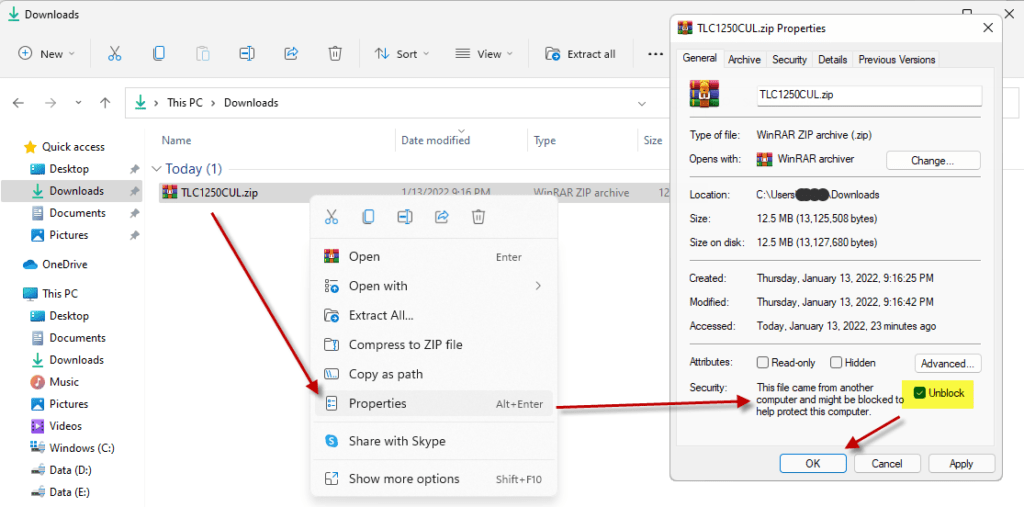
- Before installing the Converter App, make sure the files downloaded from our site are not blocked by Windows SmartScreen… Windows 11 is finicky, click the TLC zip first to make sure it’s fully selected then Right+click the file and select Properties. Be sure to check the Unblock checkbox as shown below and Click OK…

- Double click the zip file to open it and install the TLC application as normal. By the way, TLC stands for The Longbow Converter
- Using Windows Explorer, copy your entire AutoCAD R13 CD to your hard drive, to a folder path c:\Autodesk\acadR13
- Start the Longbow Converter tool
- Select the 2nd tab named “Old AutoCAD Installer Reviver“
- Using the “…” button, pick the folder path c:\Autodesk\acadR13
- Click “Run Old Installer”
- Read and follow all the prompts
- Once the AutoCAD setup starts, stop and read the next step…
- In the AutoCAD setup program, navigate through each setup dialog as normal
- Carry on with the install, ignore any errors.
- Once setup completes…
- Do not reboot if asked to do so
- Make sure to fully close the setup program when the installation is complete.
- Once installed, go back to the Converter tool…
- select the 3rd tab “Old AutoCAD Program Reviver”
- using the “…” button pick the newly installed c:\R13 folder
- click “Fix Old Program“.
- Finally, reboot your PC
- Now, you can happily run your AutoCAD R13 on Windows 11
Troubleshooting
- If you have crashing problems using the File->Open or File->Save dialogs inside of AutoCAD please read this blog entry on the File->Open or File->Save Crash in AutoCAD
Copyright 2025 (c) Longbow Software