
Install AutoCAD R13 on Windows 11

Follow these instructions to solve issues around installing/running your legacy AutoCAD R13 on Windows 11

Ransomware Protection Windows 11 and AutoCAD

Windows 11 comes with a Ransomware Protection which includes Controlled Folder Access. Controlled folder access blocks applications from writing to your Documents, Pictures, Videos, Music, Public and Favorites folders. AutoCAD versions all the way to AutoCAD 2021 write to certain user Public folders and are therefore blocked by this feature. This can cause issues with all sorts of things including activating your AutoCAD license and even running AutoCAD. Ransomware Protection is an important feature of Windows 11 but it will affect your AutoCAD unless you allow AutoCAD and its dependent applications access to the controlled folders.

How to install AutoCAD R13

A quick word of advice: please follow the instructions below precisely as documented including using the same folder names and paths. This will significantly reduce the risk of having any problems…
  1. If you don’t yet have a copy of the Longbow Converter App you can purchase it here or click on the download link we sent you via email in order to download the Converter App to your PC.

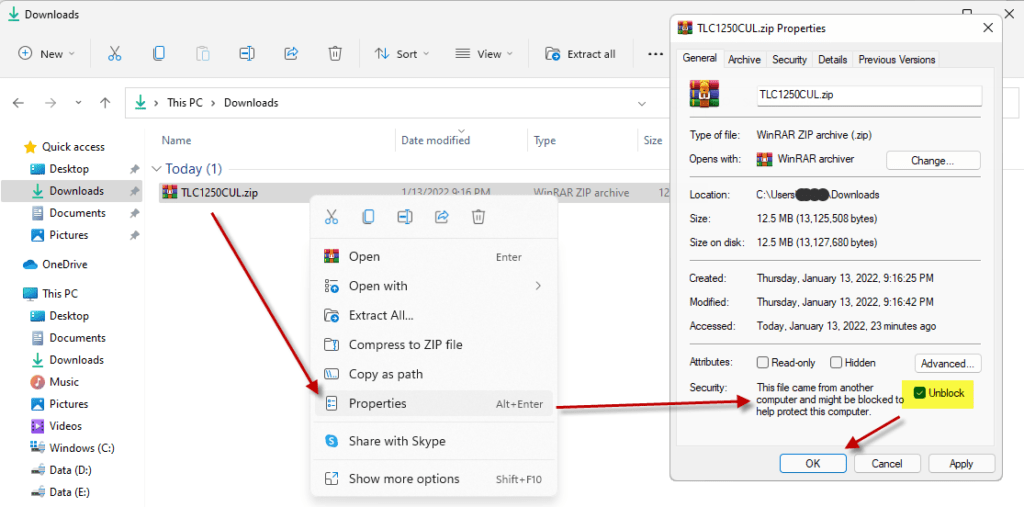
  2. Before installing the Converter App, make sure the files downloaded from our site are not blocked by Windows SmartScreen… Windows 11 is finicky, click the TLC zip first to make sure it’s fully selected then Right+click the file and select Properties. Be sure to check the Unblock checkbox as shown below and Click OK…
  3. Double click the zip file to open it and install the TLC application as normal. By the way, TLC stands for The Longbow Converter
  4. Using Windows Explorer, copy your entire AutoCAD R13 CD to your hard drive, to a folder path c:\Autodesk\acadR13
  5. Start the Longbow Converter tool
    1. Select the 2nd tab named “Old AutoCAD Installer Reviver
    2. Using the “…” button, pick the folder path c:\Autodesk\acadR13
    3. Click “Run Old Installer
      1. Read and follow all the prompts
      2. Once the AutoCAD setup starts, stop and read the next step…
  6. In the AutoCAD setup program, navigate through each setup dialog as normal

    1. Carry on with the install, ignore any errors.
    2. Once setup completes…
      1. Do not reboot if asked to do so
      2. Make sure to fully close the setup program when the installation is complete.
  7. Once installed, go back to the Converter tool…
    1. select the 3rd tab “Old AutoCAD Program Reviver”
    2. using the “…” button pick the newly installed c:\R13 folder
    3. click “Fix Old Program“.
  8. Finally, reboot your PC
  9. Now, you can happily run your AutoCAD R13 on Windows 11

Troubleshooting

Copyright 2025 (c) Longbow Software

Installing 32bit AutoCAD 2009 on Windows 11

These instructions solve issues around installing/running and the stability of your old AutoCAD 2009 running on 64bit Windows 11. Some common issues are fatal errors or error messages like these

  • “This operating system is not supported by AutoCAD® 2009”
  • “You cannot install this product on the current operating system”
  • “You are attempting to use a 32-bit installer on a 64-bit operating system”
  • “This is a 32-bit AutoCAD® 2009. It cannot be installed on 64-bit Windows”

You can automatically solve these problems using our Longbow Converter App, it fixes and manages the AutoCAD 2009 installation so that you can be up and running again… Follow these instructions:

Ransomware Protection Windows 11 and AutoCAD

Just before we start note that Windows 11 comes with a Ransomware Protection which includes Controlled Folder Access. Controlled folder access blocks applications from writing to your Documents, Pictures, Videos, Music, Public and Favorites folders. AutoCAD versions all the way to AutoCAD 2021 write to certain user Public folders and are therefore blocked by this feature. This can cause issues with all sorts of things including activating your AutoCAD license and even running AutoCAD. Ransomware Protection is an important feature of Windows 11 but it will affect your AutoCAD unless you allow AutoCAD and its dependent applications access to the controlled folders.

IMPORTANT NOTE: Autodesk no longer supply License Activation codes for this version of AutoCAD. The best way is to transfer your existing license to the new PC but there are other options, we document them here

How to install AutoCAD 2009

  1. If you don’t yet have a copy of the Longbow Converter App you can purchase it here or click on the download link we sent you via email in order to download the Converter App to your PC.
  2. Before installing the Converter App, make sure the files downloaded from our site are not blocked by Windows SmartScreen… Windows 11 is finicky, click the TLC zip first to make sure it’s fully selected then Right+click the file and select Properties. Be sure to check the Unblock checkbox as shown below and Click OK…
  3. Double click the zip file to open it and install the TLC application as normal. By the way, TLC stands for The Longbow Converter
  4. Obtain your purchased copy of the Longbow Converter here
  5. Start the Converter App and note the user interface
  6. Select the 1st tab named “AutoCAD 32bit Installer Converter
    1. Using the “. . .” button, select your AutoCAD installation CD
    2. Next, click the “Convert button and follow instructions
  7. Once the conversion process is complete
    1. click Install/Run Setup to start setup
    2. Simply install as normal, remembering to…
      1. Fully close the setup program when the installation is complete.
      2. Back in the Converter app and make sure it has completed the final stage of processing using the “Old AutoCAD Program Reviver” tab – it should be green stating “SUCCESS!!
  8. Now run your AutoCAD as normal

Troubleshooting

  1. If you have crashing problems using the File->Open or File->Save dialogs inside of AutoCAD please read this blog entry on the File->Open or File->Save Crash in AutoCAD
Copyright 2025 (c) Longbow Software

Install ACT! V6 on Windows 11

Follow the instructions on this page to install ACT! V6 (by Interact Commerce Corporation) on Windows 11.

How to install ACT! Version 6

NOTE: To ensure success, we recommend you first read the instructions then follow the steps precisely as documented including using the same folder names and paths.

  1. Obtain your purchased copy of the Longbow Reviver App here (you will need V4.51 or newer)
  2. Start the Reviver App and note the user interface
  3. Insert your ACT! CD into the CDRom drive and back in the Reviver App
    1. From the “Old Installer Reviver” tab, use the ‘…’ button to pick your ACT! CD Drive and then subfolder called “ACT6” e.g. D:\ACT6
    2. Now click the ‘Fix and Run Old Installer‘ button
    3. The Reviver App will now copy the ACT! CD to your HD disk, follow the instructions for copying the CD…
    4. Once the CD is copied the Reviver App will run a process on the copy of the CD, then automatically launch the setup application….
      1. Be patient as the process can take up to 45 minutes
      2. Once the setup appears, stop and read the next step
  4. Once the ACT! setup application appears, enter your information as normal except when you need to specify the installation path
    1. you **must** change the default path from c:\Program Files\ACT to c:\ACT (see image below)


    2. Once you have changed the installation folder, install as normal – do not reboot the PC if prompted to do so
    3. Now back in the Reviver App, pick the “Old Program Reviver” tab
      1. Using the “…’ button select the newly installed c:\ACT folder
      2. Click Fix Old Program
        1. If prompted to “…re-register your program’s components…”, click NO 

  5. Now the revival process is completed…
    1. Reboot your PC
    2. Run ACT! as normal

Troubleshooting

  • no notes yet

Copyright 2025 (c) Longbow Software


Installing AutoCAD Mechanical Desktop (MDT) 2004 on Windows 11

NOTE: We currently only support US unlocked versions of 2004 on 64bit OS. European or locked US support 2004 is limited only to 32bit Windows 11.

Follow these instructions to solve issues around installing/running your legacy AutoCAD 2004 on Windows 11

Ransomware Protection Windows 11 and AutoCAD

Windows 11 comes with a Ransomware Protection which includes Controlled Folder Access. Controlled folder access blocks applications from writing to your Documents, Pictures, Videos, Music, Public and Favorites folders. AutoCAD versions all the way to AutoCAD 2021 write to certain user Public folders and are therefore blocked by this feature. This can cause issues with all sorts of things including activating your AutoCAD license and even running AutoCAD. Ransomware Protection is an important feature of Windows 11 but it will affect your AutoCAD unless you allow AutoCAD and its dependent applications access to the controlled folders.

How to install AutoCAD MDT 2004

A quick word of advice: please follow the instructions below precisely as documented including using the same folder names and paths. This will significantly reduce the risk of having any problems…
  1. If you don’t yet have a copy of the Longbow Converter App you can purchase it here or click on the download link we sent you via email in order to download the Converter App to your PC.
  2. Before installing the Converter App, make sure the files downloaded from our site are not blocked by Windows SmartScreen… Windows 11 is finicky, click the TLC zip first to make sure it’s fully selected then Right+click the file and select Properties. Be sure to check the Unblock checkbox as shown below and Click OK…
  3. Double click the zip file to open it and install the TLC application as normal. By the way, TLC stands for The Longbow Converter
  4. Start the Longbow Converter tool
    1. Insert your MDT 2004 CD into your CDRom drive
    2. Select the 2nd tab named “Old AutoCAD Installer Reviver
    3. Using the “…” button, pick your AutoCAD CD
    4. Click “Run Old Installer
      1. Read and follow all the prompts
      2. Once the AutoCAD setup starts, stop and read the next step…
  5. In the AutoCAD setup program, navigate through each setup dialog as normal, with these exceptions…
    1. When you arrive at the installation folder path setup dialog…
      1. **it’s vitally important to make sure you install to c:\mdt2004 (not Program Files (x86)\Mechanical Desktop 2004)**. Now install…
      2. While installing…
        1. If you see an error in install “.NET Runtime Optimization Service has stopped working” – simply ignore by clicking the “Close Program” button
        2. Do not reboot if asked to do so
      3. Once installed
        1. Do not reboot if asked to do so
        2. Make sure to fully close the setup program when the installation is complete.
        3. Back in the Converter app and make sure it’s completed the final stage of processing using the “Old AutoCAD Program Reviver” tab
  6. Finally, reboot your PC and run your AutoCAD as normal
    1. NOTE: When starting AutoCAD, if you see a warning dialog when you run saying “This program has known compatibility issues
      1. Click “Don’t show this message again”
      2. then click “Run the Program…”

Troubleshooting

  1. If you have crashing problems using the File->Open or File->Save dialogs inside of AutoCAD please read this blog entry on the File->Open or File->Save Crash in AutoCAD
  2. If while inserting Raster Images you only see an outline border/edge box displayed along with a message on the Command Line:Your system may not have enough temporary storage space to load the image file you have selected.

    To load <imagefile> you must increase the space available on drive C.

    Most likely, you have installed AutoCAD on a HDD that is larger than 2TB – partition your drive down to just less than 2TB and this will solve the issue.

Copyright 2025 (c) Longbow Software

Installing AutoCAD Mechanical Desktop 5 on Windows 11

Follow these instructions to solve issues around installing/running your legacy AutoCAD Mechanical 2000i on Windows 11

Ransomware Protection Windows 11 and AutoCAD

Windows 11 comes with a Ransomware Protection which includes Controlled Folder Access. Controlled folder access blocks applications from writing to your Documents, Pictures, Videos, Music, Public and Favorites folders. AutoCAD versions all the way to AutoCAD 2021 write to certain user Public folders and are therefore blocked by this feature. This can cause issues with all sorts of things including activating your AutoCAD license and even running AutoCAD. Ransomware Protection is an important feature of Windows 11 but it will affect your AutoCAD unless you allow AutoCAD and its dependent applications access to the controlled folders.

How to install Mechanical 2000i

Please follow the instructions below precisely as documented including using the same folder names and paths. This will significantly reduce the risk of having any problems…
  1. If you don’t yet have a copy of the Longbow Converter App you can purchase it here or click on the download link we sent you via email in order to download the Converter App to your PC.
  2. Before installing the Converter App, make sure the files downloaded from our site are not blocked by Windows SmartScreen… Windows 11 is finicky, click the TLC zip first to make sure it’s fully selected then Right+click the file and select Properties. Be sure to check the Unblock checkbox as shown below and Click OK…
  3. Double click the zip file to open it and install the TLC application as normal. By the way, TLC stands for The Longbow Converter
  4. Start the Longbow Converter tool
    1. Insert your AutoCAD Mechanical 5 CD into your CDRom drive
    2. Select the 2nd tab named “Old AutoCAD Installer Reviver
    3. Using the “…” button, pick your AutoCAD CD
    4. Click “Run Old Installer
      1. Read and follow all the prompts
      2. Once the AutoCAD setup starts, stop and read the next step…
  5. In the AutoCAD setup program, navigate through each setup dialog as normal, with these exceptions…
    1. When you arrive at the installation folder path setup dialog…
      1. **it’s vitally important to make sure you install to c:\mdt2000i (not Program Files (x86)\Mechanical Desktop 5 which is normally default)**
      2. Once setup completes…
        1. Do not reboot if asked to do so
        2. Make sure to fully close the setup program when the installation is complete.
  6. Back in the Converter app and make sure it’s completed the final stage of processing using the “Old AutoCAD Program Reviver” tab, it should say SUCCESS!
  7. Finally, reboot your PC and run your AutoCAD!

Troubleshooting

Copyright 2025 (c) Longbow Software

Install Adobe Acrobat XI or Upgrade on Windows 11

This post solves all the problems related to installing and running Adobe Acrobat XI on Windows 11

  • If you have other Adobe products that you are having issues with please contact us so we can help you

How to install Adobe Acrobat XI or the Upgrade 

NOTE: To ensure success, we recommend you first read the instructions then follow the steps precisely as documented including using the same folder names and paths.

  1. Obtain your purchased copy of the Longbow Reviver App here (you will need V4.41 or newer)
  2. Start the Reviver App and note the user interface
  3.  Insert your Adobe Acrobat CD into the CDRom drive and back in the Reviver App
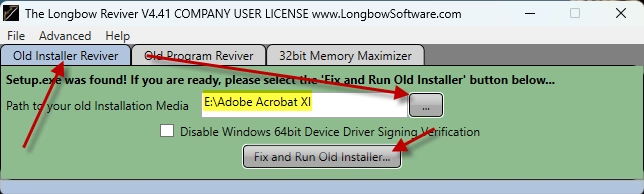
    1. From the “Old Installer Reviver” tab, use the ‘…’ button to pick your Adobe Acrobat XI CD Drive and the subfolder called “Adobe Acrobat XI” e.g. D:\Adobe Acrobat XI
    2. Now click the ‘Fix and Run Old Installer‘ button


    3. Follow the instructions for copying the CD
    4. Once the CD is copied the Reviver App will run a process on the copy of the CD, then automatically launch the setup application….
      1. Be patient as the process can take up to 45 minutes
      2. Once the setup appears, stop and read the next step
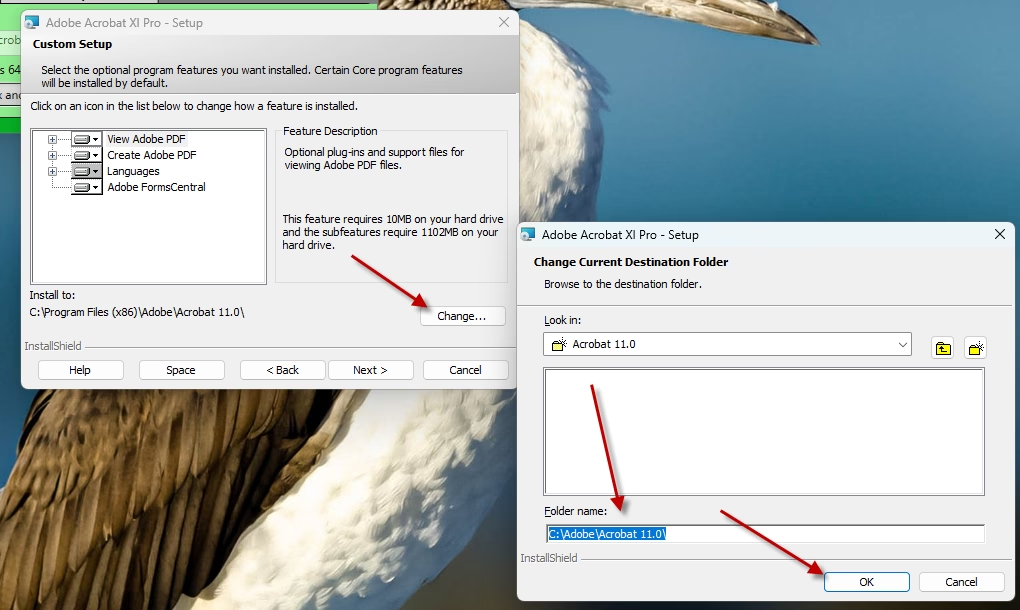
  4. Once the setup application appears, enter your information as normal except when you get to the “Setup Type” dialog, click Custom then change the installation path…
    1. you **must** change the default path to c:\adobe\acrobat 11.0 (see image below)


    2. Once you have changed the installation folder, install as normal – do not reboot the PC if prompted to do so
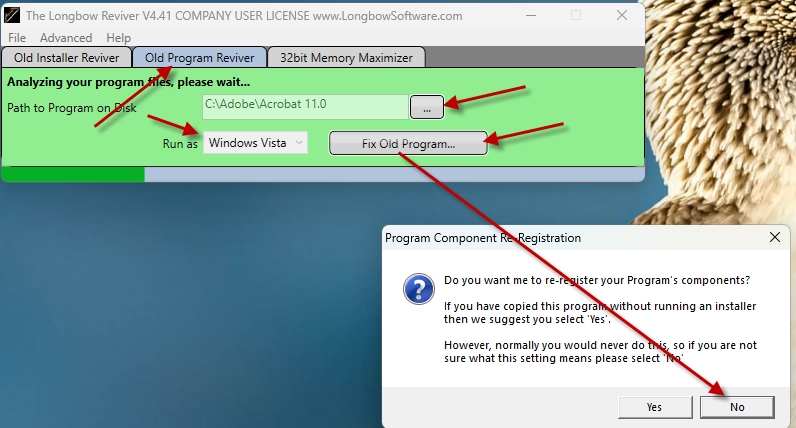
    3. Now back in the Reviver App, pick the “Old Program Reviver” tab
      1. Using the “…’ button select the newly installed c:\adobe\acrobat 11.0 folder
      2. Click Run As and select Windows Vista
      3. Click Fix Old Program
        1. If prompted to “…re-register your program’s components…”, click NO 


  5. Now the revival process is completed…
    1. Reboot your PC
    2. Run Adobe Acrobat XI as normal

Troubleshooting

  • no notes yet

Copyright 2025 (c) Longbow Software


Install Adobe Acrobat 8 Professional on Windows 11

This post solves all the problems related to installing and running Adobe Acrobat 8 Professional on Windows 11

  • If you have other Adobe products that you are having issues with please contact us so we can help you

How to install Adobe Acrobat 8 Professional

NOTE: To ensure success, we recommend you first read the instructions then follow the steps precisely as documented including using the same folder names and paths.

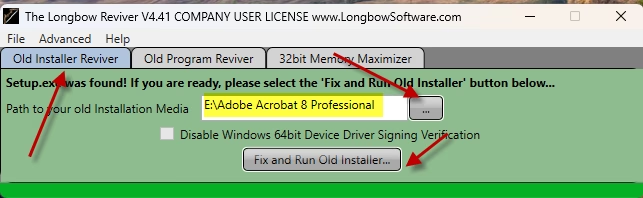
  1. Obtain your purchased copy of the Longbow Reviver App here (you will need V4.41 or newer)
  2. Start the Reviver App and note the user interface
  3.  Insert your Adobe Acrobat CD into the CDRom drive and back in the Reviver App
    1. From the “Old Installer Reviver” tab, use the ‘…’ button to pick your Adobe Acrobat 8 Professional CD Drive and the subfolder called “Adobe Acrobat 8 Professional” e.g. D:\Adobe Acrobat 8 Professional
    2. Now click the ‘Fix and Run Old Installer‘ button


    3. Follow the instructions for copying the CD
    4. Once the CD is copied the Reviver App will run a process on the copy of the CD, then automatically launch the setup application….
      1. Be patient as the process can take up to 45 minutes
      2. Once the setup appears, stop and read the next step
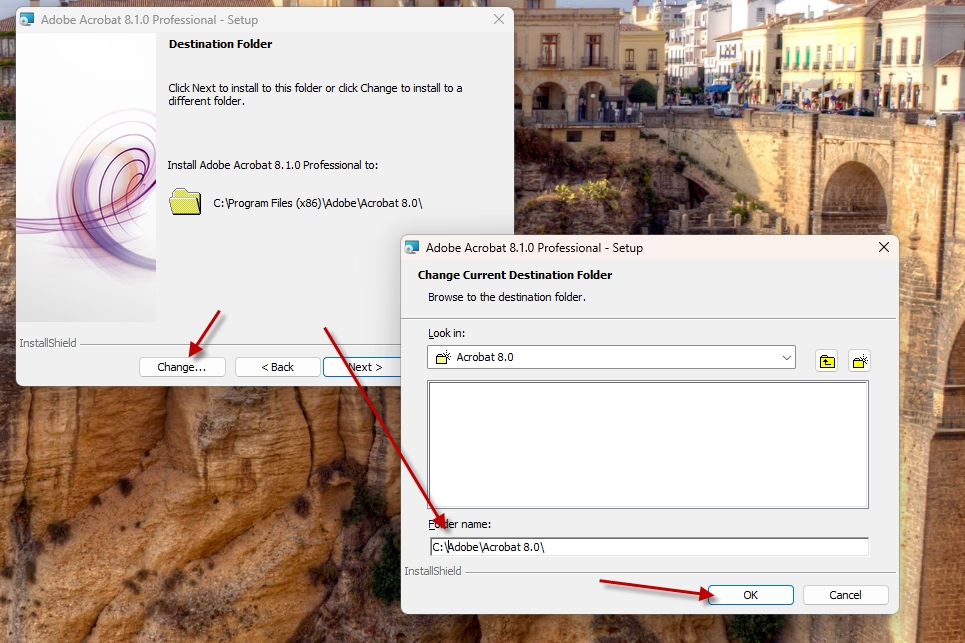
  4. Once the setup application appears, enter your information as normal except when you get to the installation folder…
    1. you **must** change the default path to c:\adobe\acrobat 8.0 (see image below)


    2. Once you have changed the installation folder, install as normal – do not reboot the PC if prompted to do so
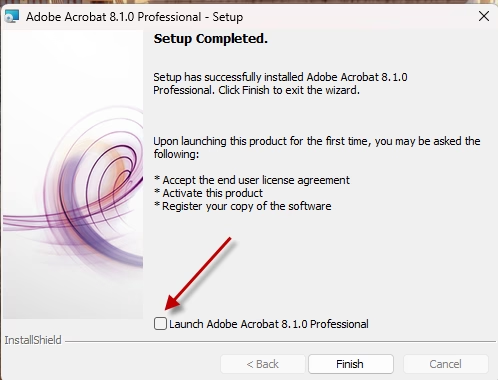
    3. Uncheck “Launch Adobe Acrobat 8” as the Reviver needs to fix the installed program files first


    4. remember to fully close setup once completed
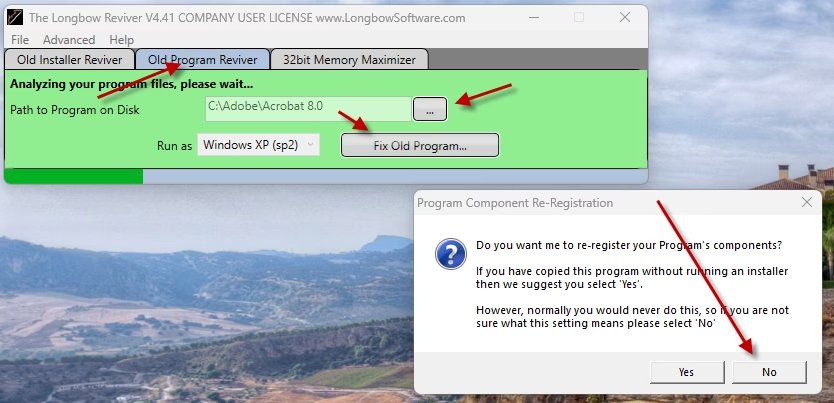
  5. Now back in the Reviver App, pick the “Old Program Reviver” tab
    1. Using the “…’ button select the newly installed c:\adobe\acrobat 8.0 folder
    2. Click Fix Old Program
      1. If prompted to “…re-register your program’s components…”, click NO 

  6. Now the revival process is completed…
    1. Reboot your PC
    2. Run Adobe Acrobat 8 Professional as normal

Troubleshooting

  • no notes yet

Copyright 2025 (c) Longbow Software


Installing AutoCAD LT 2007 on Windows 11

If you are trying to install your old version of AutoCAD LT 2007 on Windows 11 you can run into lots of problems. Because there are so many issues, we created an App called the Longbow Converter to automatically smooth over installation and running issues for you. All you need to do is follow these steps to install your AutoCAD LT 2007 on Windows 11 and make it work…

IMPORTANT NOTE: Autodesk no longer supply License Activation codes for this version of AutoCAD. The best way is to transfer your existing license to the new PC but there are other options, we document them here

Ransomware Protection Windows 11 and AutoCAD

Just before we start note that Windows 11 comes with a Ransomware Protection which includes Controlled Folder Access. Controlled folder access blocks applications from writing to your Documents, Pictures, Videos, Music, Public and Favorites folders. AutoCAD versions all the way to AutoCAD 2021 write to certain user Public folders and are therefore blocked by this feature. This can cause issues with all sorts of things including activating your AutoCAD license and even running AutoCAD. Ransomware Protection is an important feature of Windows 11 but it will affect your AutoCAD unless you allow AutoCAD and its dependent applications access to the controlled folders.

How to install AutoCAD LT 2007 

A quick word of advice: please follow the instructions below precisely as documented (including using the same folder names and paths) as this will significantly reduce the risk of having any problems…
  1. If you don’t yet have a copy of the Longbow Converter App you can purchase it here or click on the download link we sent you via email in order to download the Converter App to your PC.
  2. Before installing the Converter App, make sure the files downloaded from our site are not blocked by Windows SmartScreen… Windows 11 is finicky, click the TLC zip first to make sure it’s fully selected then Right+click the file and select Properties. Be sure to check the Unblock checkbox as shown below and Click OK…
  3. Double click the zip file to open it and install the TLC application as normal. By the way, TLC stands for The Longbow Converter
  4. Now, start the Longbow Converter tool by double clicking the Longbow Converter shortcut on your Desktop…
  5. Start the Longbow Converter tool
    1. Insert your AutoCAD LT 2007 CD into your CDRom drive
    2. Select the 2nd tab named “Old AutoCAD Installer Reviver
      1. Using the “…” button, path the to your AutoCAD 2007 CD
      2. Click “Run Old Installer
        1. Read and follow all the prompts
        2. If you see a dialog stating “An App on your PC needs the following Windows Feature: .NET Framework 3.5 (includes .NET 2.0 and 3.0)” be sure to click “Download and install this feature” as this must be installed in order for the setup to run
        3. Once the AutoCAD setup starts, stop and read the next step…
  6. In the setup program, navigate through each setup dialog as normal, with these exceptions…
    1. When you click the Install link from your setup you may see a dialog box appear saying – “This program has compatibility issues” – simply check the “Don’t show this message again” and then click the “Run the program without getting help” button
    2. When you arrive at the installation folder path setup dialog, **it’s vitally important to make sure you install to c:\acadlt2007 (not Program Files (x86)\AutoCAD LT 2007)**.
    3. Once AutoCAD has installed
      1. completely close setup
      2. Go back to the Converter app and make sure it’s completed the final stage of processing using the “Old AutoCAD Program Reviver” tab
  7. Now reboot your PC and run your AutoCAD as normal
    1. NOTE: When starting AutoCAD, if you see a warning dialog when you run saying “This program has known compatibility issues”, simply click “Don’t show this message again” and then click “Run the Program…”

Installing AutoCAD LT 2007 Sp1

To install the sp for your AutoCAD…
  1. Download and unzip the AutoCAD LT 2007 Sp1
  2. Copy the autocad2007sp1.exe to folder path c:\Autodesk\sp
  3. Start the Converter, select the 3rd tab, pick the c:\Autodesk\sp folder and click Fix.
  4. Now you can run the autocad2007sp1.exe from Windows explorer and install normally.
  5. Next install sp2 just below…

Installing AutoCAD LT 2007 Sp2

To install the sp for your AutoCAD…
  1. Download and unzio the AutoCAD LT 2007 Sp2
  2. Copy the autocad2007sp2.exe to folder path c:\Autodesk\sp
  3. Start the Converter, select the 3rd tab, pick the c:\Autodesk\sp folder and click Fix.
  4. Now you can run the autocad2007sp2.exe from Windows explorer and install normally.

Troubleshooting

  1. If you are unable to activate your product, or the activation process crashes
    1. Autodesk no longer supply License Activation codes for this version of AutoCAD. The best way is to transfer your existing license to the new PC but there are other options, we document them here
    2. Try uninstalling the July 2014 Microsoft security update
    3. Try downgrading your Internet Explorer (IE) from version 11 to version 10 by following the instructions detailed here
    4. Perhaps you have a SATA drive – Activation problems with AutoCAD 2006 and AutoCAD 2007
  2. If you have crashing problems using the File->Open or File->Save dialogs inside of AutoCAD please read this blog entry on the File->Open or File->Save Crash in AutoCAD
Copyright 2025 (c) Longbow Software

Install AutoCAD ADT 3.3/Architecture 3.3 (2002) on Windows 11

Follow these instructions to solve issues around installing/running your legacy AutoCAD ADT 3.3 (2002) on Windows 11

Ransomware Protection Windows 11 and AutoCAD

Windows 11 comes with a Ransomware Protection which includes Controlled Folder Access. Controlled folder access blocks applications from writing to your Documents, Pictures, Videos, Music, Public and Favorites folders. AutoCAD versions all the way to AutoCAD 2021 write to certain user Public folders and are therefore blocked by this feature. This can cause issues with all sorts of things including activating your AutoCAD license and even running AutoCAD. Ransomware Protection is an important feature of Windows 11 but it will affect your AutoCAD unless you allow AutoCAD and its dependent applications access to the controlled folders.

How to install AutoCAD ADT 3.3

A quick word of advice: please follow the instructions below precisely as documented including using the same folder names and paths. This will significantly reduce the risk of having any problems…
  1. If you don’t yet have a copy of the Longbow Converter App you can purchase it here or click on the download link we sent you via email in order to download the Converter App to your PC.
  2. Before installing the Converter App, make sure the files downloaded from our site are not blocked by Windows SmartScreen… Windows 11 is finicky, click the TLC zip first to make sure it’s fully selected then Right+click the file and select Properties. Be sure to check the Unblock checkbox as shown below and Click OK…
  3. Double click the zip file to open it and install the TLC application as normal. By the way, TLC stands for The Longbow Converter
  4. Start the Longbow Converter tool
    1. Insert your AutoCAD ADT 3.3 CD into your CDRom drive
    2. Select the 2nd tab named “Old AutoCAD Installer Reviver
    3. Using the “…” button, pick your AutoCAD CD
    4. Click “Run Old Installer
      1. Read and follow all the prompts
      2. Once the AutoCAD setup starts, stop and read the next step…
  5. In the AutoCAD setup program, navigate through each setup dialog as normal, with these exceptions…
    1. When you arrive at the installation folder path setup dialog…
      1. **it’s vitally important to make sure you install to c:\acadadt2002 (not Program Files (x86)\AutoCAD  ADT 3.3 which is normally default)**
      2. Once setup completes…
        1. Do not reboot if asked to do so
        2. Make sure to fully close the setup program when the installation is complete.
  6. Back in the Converter app and make sure it’s completed the final stage of processing using the “Old AutoCAD Program Reviver” tab, it should say SUCCESS!
  7. Finally, reboot your PC and run your AutoCAD and once registered, exit AutoCAD and continue to the next step.
  8. Next, obtain the AutoCAD ADT 3.3 sp2 from here unzip and save to c:\Autodesk\spdo not install yet
    1. Go back into the Converter
    2. Select the 3rd tab again
    3. titled “Old AutoCAD Program Reviver
    4. Using the ‘…’ button, select the c:\Autodesk\sp folder
    5. click “Fix Old Program
    6. Finally, install the AutoCAD ADT 3.3 sp2 by running the c:\Autodesk\sp\adt33unlsp2enu.exe 
  9. Now, you can happily run your AutoCAD ADT 3.3 on Windows 11

Troubleshooting

  • If your AutoCAD ADT 3.3 setup stuck at very end, check out this blog
  • If you have crashing problems using the File->Open or File->Save dialogs inside of AutoCAD please read this blog entry on the File->Open or File->Save Crash in AutoCAD 
Copyright 2025 (c) Longbow Software

Installing AutoCAD LT 2004 on Windows 11

NOTE: We currently only support US unlocked versions of 2004 on 64bit OS. European or locked US support 2004 is limited only to 32bit Windows 11.

Follow these instructions to solve issues around installing/running your legacy AutoCAD LT 2004 on Windows 11

Ransomware Protection Windows 11 and AutoCAD

Windows 11 comes with a Ransomware Protection which includes Controlled Folder Access. Controlled folder access blocks applications from writing to your Documents, Pictures, Videos, Music, Public and Favorites folders. AutoCAD versions all the way to AutoCAD 2021 write to certain user Public folders and are therefore blocked by this feature. This can cause issues with all sorts of things including activating your AutoCAD license and even running AutoCAD. Ransomware Protection is an important feature of Windows 11 but it will affect your AutoCAD unless you allow AutoCAD and its dependent applications access to the controlled folders.

How to install AutoCAD LT 2004

A quick word of advice: please follow the instructions below precisely as documented including using the same folder names and paths. This will significantly reduce the risk of having any problems…
  1. If you don’t yet have a copy of the Longbow Converter App you can purchase it here or click on the download link we sent you via email in order to download the Converter App to your PC.
  2. Before installing the Converter App, make sure the files downloaded from our site are not blocked by Windows SmartScreen… Windows 11 is finicky, click the TLC zip first to make sure it’s fully selected then Right+click the file and select Properties. Be sure to check the Unblock checkbox as shown below and Click OK…
  3. Double click the zip file to open it and install the TLC application as normal. By the way, TLC stands for The Longbow Converter
  4. Start the Longbow Converter tool
    1. Insert your AutoCAD LT 2004 CD into your CDRom drive
    2. Select the 2nd tab named “Old AutoCAD Installer Reviver
    3. Using the “…” button, pick your AutoCAD CD
    4. Click “Run Old Installer
      1. Read and follow all the prompts
      2. Once the AutoCAD setup starts, stop and read the next step…
  5. In the AutoCAD setup program, navigate through each setup dialog as normal, with these exceptions…
    1. When you arrive at the installation folder path setup dialog…
      1. **it’s vitally important to make sure you install to c:\acadlt2004 (not Program Files (x86)\AutoCAD LT 2004)**. Now install…
      2. While installing…
        1. If you see an error in install “.NET Runtime Optimization Service has stopped working” – simply ignore by clicking the “Close Program” button
        2. Do not reboot if asked to do so
      3. Once installed
        1. Do not reboot if asked to do so
        2. Make sure to fully close the setup program when the installation is complete.
        3. Back in the Converter app and make sure it’s completed the final stage of processing using the “Old AutoCAD Program Reviver” tab
  6. Finally, reboot your PC and run your AutoCAD as normal
    1. NOTE: When starting AutoCAD, if you see a warning dialog when you run saying “This program has known compatibility issues
      1. Click “Don’t show this message again”
      2. then click “Run the Program…”

Troubleshooting

  1. If you have crashing problems using the File->Open or File->Save dialogs inside of AutoCAD please read this blog entry on the File->Open or File->Save Crash in AutoCAD
  2. If while inserting Raster Images you only see an outline border/edge box displayed along with a message on the Command Line:Your system may not have enough temporary storage space to load the image file you have selected.

    To load <imagefile> you must increase the space available on drive C.

    Most likely, you have installed AutoCAD on a HDD that is larger than 2TB – partition your drive down to just less than 2TB and this will solve the issue.

Copyright 2025 (c) Longbow Software

Installing 32bit AutoCAD 2013 on Windows 11

These instructions solve issues around installing/running your old AutoCAD 2013 on 64bit Windows 11. Some common issues are error messages like these

  • “This operating system is not supported by AutoCAD® 2013”
  • “You cannot install this product on the current operating system”
  • “You are attempting to use a 32-bit installer on a 64-bit operating system”
  • “This is a 32-bit AutoCAD® 2013. It cannot be installed on 64-bit Windows”
  • FATAL ERROR: (0x7ff87b2f0005) c:\Program Files\Autodesk\AutoCAD 2013\acsceneoe.dbx

You can automatically solve these problems using our Longbow Converter App, it fixes and manages the AutoCAD 2013 installation so that you can be up and running again… Follow these instructions:

Ransomware Protection Windows 11 and AutoCAD

Just before we start note that Windows 11 comes with a Ransomware Protection which includes Controlled Folder Access. Controlled folder access blocks applications from writing to your Documents, Pictures, Videos, Music, Public and Favorites folders. AutoCAD versions all the way to AutoCAD 2021 write to certain user Public folders and are therefore blocked by this feature. This can cause issues with all sorts of things including activating your AutoCAD license and even running AutoCAD. Ransomware Protection is an important feature of Windows 11 but it will affect your AutoCAD unless you allow AutoCAD and its dependent applications access to the controlled folders.

How to install AutoCAD 2013

  1. If you don’t yet have a copy of the Longbow Converter App you can purchase it here or click on the download link we sent you via email in order to download the Converter App to your PC.
  2. Before installing the Converter App, make sure the files downloaded from our site are not blocked by Windows SmartScreen… Windows 11 is finicky, click the TLC zip first to make sure it’s fully selected then Right+click the file and select Properties. Be sure to check the Unblock checkbox as shown below and Click OK…
  3. Double click the zip file to open it and install the TLC application as normal. By the way, TLC stands for The Longbow Converter
  4. Obtain your purchased copy of the Longbow Converter here
  5. Start the Converter App and note the user interface
  6. Select the 1st tab named “AutoCAD 32bit Installer Converter
    1. Using the “. . .” button, selection your AutoCAD installation CD
    2. Next, click the “Convert button and follow instructions
  7. Once the conversion process is complete
    1. click Install/Run Setup to start setup
    2. Simply install as normal, remembering to…
      1. Close the setup program when the installation is complete.
      2. Back in the Converter app and make sure it has completed the final stage of processing using the “Old AutoCAD Program Reviver” tab – it should be green stating “SUCCESS!!!
  8. Now run your AutoCAD as normal

Troubleshooting

  1. If you have crashing problems using the File->Open or File->Save dialogs inside of AutoCAD please read this blog entry on the File->Open or File->Save Crash in AutoCAD
Copyright 2025 (c) Longbow Software

Installing AutoCAD LT 2006 on Windows 11

If you are trying to install your old version of AutoCAD LT 2006 on Windows 11 you can run into lots of problems. Because there are so many issues, we created an App called the Longbow Converter to automatically smooth over installation and running issues for you. All you need to do is follow these steps to install your AutoCAD LT 2006 on Windows 11…

IMPORTANT NOTE: Autodesk no longer supply License Activation codes for this version of AutoCAD. The best way is to transfer your existing license to the new PC but there are other options, we document them here

Ransomware Protection Windows 11 and AutoCAD

Just before we start note that Windows 11 comes with a Ransomware Protection which includes Controlled Folder Access. Controlled folder access blocks applications from writing to your Documents, Pictures, Videos, Music, Public and Favorites folders. AutoCAD versions all the way to AutoCAD 2021 write to certain user Public folders and are therefore blocked by this feature. This can cause issues with all sorts of things including activating your AutoCAD license and even running AutoCAD. Ransomware Protection is an important feature of Windows 11 but it will affect your AutoCAD unless you allow AutoCAD and its dependent applications access to the controlled folders.

How to install AutoCAD LT 2006 

A quick word of advice: please follow the instructions below precisely as documented (including using the same folder names and paths) as this will significantly reduce the risk of having any problems…

  1. If you don’t yet have a copy of the Longbow Converter App you can purchase it here or click on the download link we sent you via email in order to download the Converter App to your PC.
  2. Before installing the Converter App, make sure the files downloaded from our site are not blocked by Windows SmartScreen… Windows 11 is finicky, click the TLC zip first to make sure it’s fully selected then Right+click the file and select Properties. Be sure to check the Unblock checkbox as shown below and Click OK…
  3. Double click the zip file to open it and install the TLC application as normal. By the way, TLC stands for The Longbow Converter
  4. Now
    1. start the Longbow Converter tool by double clicking the Longbow Converter shortcut on your Desktop…
    2. Insert your AutoCAD LT 2006 CD into your CDRom drive
      1. Select the 2nd tab named “Old AutoCAD Installer Reviver
        1. Using the “…” button, path the to your AutoCAD LT 2006 CD
        2. Click “Run Old Installer
          1. Read and follow all the prompts
          2. If you see a dialog stating “An App on your PC needs the following Windows Feature: .NET Framework 3.5 (includes .NET 2.0 and 3.0)” be sure to click “Download and install this feature” as this must be installed in order for the setup to run
          3. Once the AutoCAD LT 2006 setup starts, stop and read the next step…
  5. In the setup program, navigate through each setup dialog as normal, with these exceptions…
    1. When you click the Install link from your setup you may see a dialog box appear saying – “This program has compatibility issues” – simply check the “Don’t show this message again” and then click the “Run the program without getting help” button
    2. When you arrive at the installation folder path setup dialog, **it’s vitally important to make sure you install to c:\acadlt2006 (not Program Files (x86)\AutoCAD LT 2006 as prompted by default)**.
    3. Once AutoCAD has installed
      1. completely close AutoCAD setup
      2. Go back to the Converter app and make sure it’s completed the final stage of processing using the “Old AutoCAD Program Reviver” tab – it should say “SUCCESS!!
  6. Now reboot your PC and run your AutoCAD as normal
    1. NOTE: When starting AutoCAD, if you see a warning dialog when you run saying “This program has known compatibility issues”, simply click “Don’t show this message again” and then click “Run the Program…”

Troubleshooting

  1. If you are unable to activate your product, or the activation process crashes
    1. Autodesk no longer supply License Activation codes for this version of AutoCAD. The best way is to transfer your existing license to the new PC but there are other options, we document them here
    2. Try uninstalling the July 2014 Microsoft security update
    3. Try downgrading your Internet Explorer (IE) from version 11 to version 10 by following the instructions detailed here
    4. Perhaps you have a SATA drive – Activation problems with AutoCAD 2006 and AutoCAD 2007
  2. If you have crashing problems using the File->Open or File->Save dialogs inside of AutoCAD please read this blog entry on the File->Open or File->Save Crash in AutoCAD
Copyright 2025 (c) Longbow Software

Installing 32bit AutoCAD LT 2008 on Windows 11

These instructions solve issues around installing/running your old AutoCAD LT 2008 on 64bit Windows 11. Some common issues are error messages like these

  • “This operating system is not supported by AutoCAD LT® 2008”
  • “You cannot install this product on the current operating system”
  • “You are attempting to use a 32-bit installer on a 64-bit operating system”
  • “This is a 32-bit AutoCAD LT® 2008. It cannot be installed on 64-bit Windows”

You can automatically solve these problems using our Longbow Converter App, it fixes and manages the AutoCAD LT 2008 installation so that you can be up and running again… Follow these instructions:

Ransomware Protection Windows 11 and AutoCAD

Just before we start note that Windows 11 comes with a Ransomware Protection which includes Controlled Folder Access. Controlled folder access blocks applications from writing to your Documents, Pictures, Videos, Music, Public and Favorites folders. AutoCAD versions all the way to AutoCAD 2021 write to certain user Public folders and are therefore blocked by this feature. This can cause issues with all sorts of things including activating your AutoCAD license and even running AutoCAD. Ransomware Protection is an important feature of Windows 11 but it will affect your AutoCAD unless you allow AutoCAD and its dependent applications access to the controlled folders.

IMPORTANT NOTE: Autodesk no longer supply License Activation codes for this version of AutoCAD. The best way is to transfer your existing license to the new PC but there are other options, we document them here

How to install AutoCAD LT 2008

  1. If you don’t yet have a copy of the Longbow Converter App you can purchase it here or click on the download link we sent you via email in order to download the Converter App to your PC.
  2. Before installing the Converter App, make sure the files downloaded from our site are not blocked by Windows SmartScreen… Windows 11 is finicky, click the TLC zip first to make sure it’s fully selected then Right+click the file and select Properties. Be sure to check the Unblock checkbox as shown below and Click OK…
  3. Double click the zip file to open it and install the TLC application as normal. By the way, TLC stands for The Longbow Converter
  4. Obtain your purchased copy of the Longbow Converter here
  5. Start the Converter App and note the user interface
  6. Select the 1st tab named “AutoCAD 32bit Installer Converter
    1. Using the “. . .” button, select your AutoCAD installation CD
    2. Next, click the “Convert button and follow instructions
  7. Once the conversion process is complete
    1. click Install/Run Setup to start setup
    2. Simply install as normal, remembering to…
      1. Fully close the setup program when the installation is complete.
      2. Back in the Converter app and make sure it has completed the final stage of processing using the “Old AutoCAD Program Reviver” tab – it should be green stating “SUCCESS!!
  8. Now run your AutoCAD as normal

Troubleshooting

  1. If you have crashing problems using the File->Open or File->Save dialogs inside of AutoCAD please read this blog entry on the File->Open or File->Save Crash in AutoCAD
Copyright 2025 (c) Longbow Software

Installing AutoCAD 2006 on Windows 11

If you are trying to install your old version of AutoCAD 2006 on Windows 11 you can run into lots of problems. Because there are so many issues, we created an App called the Longbow Converter to automatically smooth over installation and running issues for you. All you need to do is follow these steps to install your AutoCAD 2006 on Windows 11 and make it work…

IMPORTANT NOTE: Autodesk no longer supply License Activation codes for this version of AutoCAD. The best way is to transfer your existing license to the new PC but there are other options, we document them here

Ransomware Protection Windows 11 and AutoCAD

Just before we start note that Windows 11 comes with a Ransomware Protection which includes Controlled Folder Access. Controlled folder access blocks applications from writing to your Documents, Pictures, Videos, Music, Public and Favorites folders. AutoCAD versions all the way to AutoCAD 2021 write to certain user Public folders and are therefore blocked by this feature. This can cause issues with all sorts of things including activating your AutoCAD license and even running AutoCAD. Ransomware Protection is an important feature of Windows 11 but it will affect your AutoCAD unless you allow AutoCAD and its dependent applications access to the controlled folders.

How to install AutoCAD 2006 

A quick word of advice: please follow the instructions below precisely as documented (including using the same folder names and paths) as this will significantly reduce the risk of having any problems…
  1. If you don’t yet have a copy of the Longbow Converter App you can purchase it here or click on the download link we sent you via email in order to download the Converter App to your PC.
  2. Before installing the Converter App, make sure the files downloaded from our site are not blocked by Windows SmartScreen… Windows 11 is finicky, click the TLC zip first to make sure it’s fully selected then Right+click the file and select Properties. Be sure to check the Unblock checkbox as shown below and Click OK…
  3. Double click the zip file to open it and install the TLC application as normal. By the way, TLC stands for The Longbow Converter
  4. Now, start the Longbow Converter tool by double clicking the Longbow Converter shortcut on your Desktop…
  5. Start the Longbow Converter tool
    1. Insert your AutoCAD 2006 CD into your CDRom drive
    2. Select the 2nd tab named “Old AutoCAD Installer Reviver
      1. Using the “…” button, path the to your AutoCAD 2006 CD
      2. Click “Run Old Installer
        1. Read and follow all the prompts
        2. If you see a dialog stating “An App on your PC needs the following Windows Feature: .NET Framework 3.5 (includes .NET 2.0 and 3.0)” be sure to click “Download and install this feature” as this must be installed in order for the setup to run
        3. Once the AutoCAD 2006 setup starts, stop and read the next step…
  6. In the setup program, navigate through each setup dialog as normal, with these exceptions…
    1. When you click the Install link from your setup you may see a dialog box appear saying – “This program has compatibility issues” – simply check the “Don’t show this message again” and then click the “Run the program without getting help” button
    2. When you arrive at the installation folder path setup dialog, **it’s vitally important to make sure you install to c:\acad2006 (not Program Files (x86)\AutoCAD 2006)**.
    3. Once AutoCAD has installed
      1. completely close setup
      2. Go back to the Converter app and make sure it’s completed the final stage of processing using the “Old AutoCAD Program Reviver” tab
  7. Now reboot your PC and run your AutoCAD as normal
    1. NOTE: When starting AutoCAD, if you see a warning dialog when you run saying “This program has known compatibility issues”, simply click “Don’t show this message again” and then click “Run the Program…”

Troubleshooting

  1. If you are unable to activate your product, or the activation process crashes
    1. Autodesk no longer supply License Activation codes for this version of AutoCAD. The best way is to transfer your existing license to the new PC but there are other options, we document them here
    2. Try uninstalling the July 2014 Microsoft security update
    3. Try downgrading your Internet Explorer (IE) from version 11 to version 10 by following the instructions detailed here
    4. Perhaps you have a SATA drive – Activation problems with AutoCAD 2006 and AutoCAD 2007
  2. If you have crashing problems using the File->Open or File->Save dialogs inside of AutoCAD please read this blog entry on the File->Open or File->Save Crash in AutoCAD
Copyright 2024 (c) Longbow Software

Installing 32bit AutoCAD LT 2013 on Windows 11

These instructions solve issues around installing/running your old AutoCAD 2013 on 64bit Windows 11. Some common issues are error messages like these

  • “This operating system is not supported by AutoCAD LT® 2013”
  • “You cannot install this product on the current operating system”
  • “You are attempting to use a 32-bit installer on a 64-bit operating system”
  • “This is a 32-bit AutoCAD LT® 2013. It cannot be installed on 64-bit Windows”
  • FATAL ERROR: (0x7ff87b2f0005) c:\program files\autodesk\autocad lt 2013\acsceneoe.dbx

You can automatically solve these problems using our Longbow Converter App, it fixes and manages the AutoCAD LT 2013 installation so that you can be up and running again… Follow these instructions:

Ransomware Protection Windows 11 and AutoCAD

Just before we start note that Windows 11 comes with a Ransomware Protection which includes Controlled Folder Access. Controlled folder access blocks applications from writing to your Documents, Pictures, Videos, Music, Public and Favorites folders. AutoCAD versions all the way to AutoCAD 2021 write to certain user Public folders and are therefore blocked by this feature. This can cause issues with all sorts of things including activating your AutoCAD license and even running AutoCAD. Ransomware Protection is an important feature of Windows 11 but it will affect your AutoCAD unless you allow AutoCAD and its dependent applications access to the controlled folders.

How to install AutoCAD LT 2013

  1. If you don’t yet have a copy of the Longbow Converter App you can purchase it here or click on the download link we sent you via email in order to download the Converter App to your PC.
  2. Before installing the Converter App, make sure the files downloaded from our site are not blocked by Windows SmartScreen… Windows 11 is finicky, click the TLC zip first to make sure it’s fully selected then Right+click the file and select Properties. Be sure to check the Unblock checkbox as shown below and Click OK…
  3. Double click the zip file to open it and install the TLC application as normal. By the way, TLC stands for The Longbow Converter
  4. Obtain your purchased copy of the Longbow Converter here
  5. Start the Converter App and note the user interface
  6. Select the 1st tab named “AutoCAD 32bit Installer Converter
    1. Using the “. . .” button, selection your AutoCAD installation CD
    2. Next, click the “Convert button and follow instructions
  7. Once the conversion process is complete
    1. click Install/Run Setup to start setup
    2. Simply install as normal, remembering to…
      1. Close the setup program when the installation is complete.
      2. Back in the Converter app and make sure it has completed the final stage of processing using the “Old AutoCAD Program Reviver” tab – it should be green stating “SUCCESS”
  8. Now run your AutoCAD as normal

Troubleshooting

  1. If you have crashing problems using the File->Open or File->Save dialogs inside of AutoCAD please read this blog entry on the File->Open or File->Save Crash in AutoCAD
Copyright 2024 (c) Longbow Software

Installing 32bit AutoCAD 2011 on Windows 11

These instructions solve issues around installing/running your old AutoCAD 2011 on 64bit Windows 11. Some common issues are error messages like these

  • “This operating system is not supported by AutoCAD® 2011”
  • “You cannot install this product on the current operating system”
  • “You are attempting to use a 32-bit installer on a 64-bit operating system”
  • “This is a 32-bit AutoCAD® 2011. It cannot be installed on 64-bit Windows”

You can automatically solve these problems using our Longbow Converter App, it fixes and manages the AutoCAD 2011 installation so that you can be up and running again… Follow these instructions:

Ransomware Protection Windows 11 and AutoCAD

Just before we start note that Windows 11 comes with a Ransomware Protection which includes Controlled Folder Access. Controlled folder access blocks applications from writing to your Documents, Pictures, Videos, Music, Public and Favorites folders. AutoCAD versions all the way to AutoCAD 2021 write to certain user Public folders and are therefore blocked by this feature. This can cause issues with all sorts of things including activating your AutoCAD license and even running AutoCAD. Ransomware Protection is an important feature of Windows 11 but it will affect your AutoCAD unless you allow AutoCAD and its dependent applications access to the controlled folders.

IMPORTANT NOTE: Autodesk no longer supply License Activation codes for this version of AutoCAD. The best way is to transfer your existing license to the new PC but there are other options, we document them here

How to install AutoCAD 2011

  1. If you don’t yet have a copy of the Longbow Converter App you can purchase it here or click on the download link we sent you via email in order to download the Converter App to your PC.
  2. Before installing the Converter App, make sure the files downloaded from our site are not blocked by Windows SmartScreen… Windows 11 is finicky, click the TLC zip first to make sure it’s fully selected then Right+click the file and select Properties. Be sure to check the Unblock checkbox as shown below and Click OK…
  3. Double click the zip file to open it and install the TLC application as normal. By the way, TLC stands for The Longbow Converter
  4. Obtain your purchased copy of the Longbow Converter here
  5. Start the Converter App and note the user interface
  6. Select the 1st tab named “AutoCAD 32bit Installer Converter
    1. Using the “. . .” button, select your AutoCAD installation CD
    2. Next, click the “Convert button and follow instructions
  7. Once the conversion process is complete
    1. click Install/Run Setup to start setup
      1. if you see a dialog stating “An App on your PC needs the following Windows Feature: .NET Framework 3.5 (includes .NET 2.0 and 3.0)” be sure to click “Download and install this feature” as this must be installed in order for the setup to run.
    2. Simply install as normal, remembering to…
      1. Close the setup program when the installation is complete.
      2. Back in the Converter app and make sure it has completed the final stage of processing using the “Old AutoCAD Program Reviver” tab – it should be green stating “SUCCESS”
  8. Now run your AutoCAD as normal

Troubleshooting

  1. If your AutoCAD crashes while interacting with the Ribbon click here
  2. If you are unable to activate your product, or the activation process crashes:
    1. Try uninstalling the July 2014 Microsoft security update
    2. Try downgrading your Internet Explorer (IE) from version 11 to version 10 by following the instructions detailed here
  3. If you have crashing problems using the File->Open or File->Save dialogs inside of AutoCAD please read this blog entry on the File->Open or File->Save Crash in AutoCAD
Copyright 2024 (c) Longbow Software

Install 32bit AutoCAD 2018 on Windows 11

These instructions solve issues around installing/running your 32bit AutoCAD 2018 on 64bit Windows 11. Some common issues are error messages like these

  • “This operating system is not supported by AutoCAD® 2018”
  • “You cannot install this product on the current operating system”
  • “You are attempting to use a 32-bit installer on a 64-bit operating system”
  • “This is a 32-bit AutoCAD® 2018. It cannot be installed on 64-bit Windows”

You can solve these problems using our Longbow Converter App, it fixes and manages the AutoCAD 2018 installation so that you can be up and running again… Follow these instructions:

Ransomware Protection Windows 11 and AutoCAD

Just before we start note that Windows 11 comes with a Ransomware Protection which includes Controlled Folder Access. Controlled folder access blocks applications from writing to your Documents, Pictures, Videos, Music, Public and Favorites folders. AutoCAD versions all the way to AutoCAD 2021 write to certain user Public folders and are therefore blocked by this feature. This can cause issues with all sorts of things including activating your AutoCAD license and even running AutoCAD. Ransomware Protection is an important feature of Windows 11 but it will affect your AutoCAD unless you allow AutoCAD and its dependent applications access to the controlled folders.

How to install AutoCAD LT 2018

  1. If you don’t yet have a copy of the Longbow Converter App you can purchase it here or click on the download link we sent you via email in order to download the Converter App to your PC.
  2. Before installing the Converter App, make sure the files downloaded from our site are not blocked by Windows SmartScreen… Windows 11 is finicky, click the TLC zip first to make sure it’s fully selected then Right+click the file and select Properties. Be sure to check the Unblock checkbox as shown below and Click OK…
  3. Double click the zip file to open it and install the TLC application as normal. By the way, TLC stands for The Longbow Converter
  4. Start the Converter App and note the user interface
  5. Select the 1st tab named “AutoCAD 32bit Installer Converter
    1. Using the “. . .” button, selection your AutoCAD installation CD
    2. Next, click the “Convert button and follow instructions
  6. Once the conversion process is complete
    1. click Install/Run Setup to start setup
    2. Simply install as normal, remembering to…
      1. Close the setup program when the installation is complete.
      2. Back in the Converter app and make sure it has completed the final stage of processing using the “Old AutoCAD Program Reviver” tab – it should be green stating “SUCCESS”
  7. Now run your AutoCAD as normal

Troubleshooting

  1. If you have crashing problems using the File->Open or File->Save dialogs inside of AutoCAD please read this blog entry on the File->Open or File->Save Crash in AutoCAD
Copyright 2024 (c) Longbow Software

Installing 32bit AutoCAD LT 2011 on Windows 11

These instructions solve issues around installing/running your old AutoCAD 2011 on 64bit Windows 11. Some common issues are error messages like these

  • “This operating system is not supported by AutoCAD LT® 2011”
  • “You cannot install this product on the current operating system”
  • “You are attempting to use a 32-bit installer on a 64-bit operating system”
  • “This is a 32-bit AutoCAD LT® 2011. It cannot be installed on 64-bit Windows”

You can automatically solve these problems using our Longbow Converter App, it fixes and manages the AutoCAD LT 2011 installation so that you can be up and running again… Follow these instructions:

Ransomware Protection Windows 11 and AutoCAD

Just before we start note that Windows 11 comes with a Ransomware Protection which includes Controlled Folder Access. Controlled folder access blocks applications from writing to your Documents, Pictures, Videos, Music, Public and Favorites folders. AutoCAD versions all the way to AutoCAD 2021 write to certain user Public folders and are therefore blocked by this feature. This can cause issues with all sorts of things including activating your AutoCAD license and even running AutoCAD. Ransomware Protection is an important feature of Windows 11 but it will affect your AutoCAD unless you allow AutoCAD and its dependent applications access to the controlled folders.

IMPORTANT NOTE: Autodesk no longer supply License Activation codes for this version of AutoCAD. The best way is to transfer your existing license to the new PC but there are other options, we document them here

How to install AutoCAD LT 2011

  1. If you don’t yet have a copy of the Longbow Converter App you can purchase it here or click on the download link we sent you via email in order to download the Converter App to your PC.
  2. Before installing the Converter App, make sure the files downloaded from our site are not blocked by Windows SmartScreen… Windows 11 is finicky, click the TLC zip first to make sure it’s fully selected then Right+click the file and select Properties. Be sure to check the Unblock checkbox as shown below and Click OK…
  3. Double click the zip file to open it and install the TLC application as normal. By the way, TLC stands for The Longbow Converter
  4. Obtain your purchased copy of the Longbow Converter here
  5. Start the Converter App and note the user interface
  6. Select the 1st tab named “AutoCAD 32bit Installer Converter
    1. Using the “. . .” button, select your AutoCAD installation CD
    2. Next, click the “Convert button and follow instructions
  7. Once the conversion process is complete
    1. click Install/Run Setup to start setup
      1. if you see a dialog stating “An App on your PC needs the following Windows Feature: .NET Framework 3.5 (includes .NET 2.0 and 3.0)” be sure to click “Download and install this feature” as this must be installed in order for the setup to run.
    2. Simply install as normal, remembering to…
      1. Close the setup program when the installation is complete.
      2. Back in the Converter app and make sure it has completed the final stage of processing using the “Old AutoCAD Program Reviver” tab – it should be green stating “SUCCESS”
  8. Now run your AutoCAD as normal

Troubleshooting

  1. If your AutoCAD crashes while interacting with the Ribbon click here
  2. If you are unable to activate your product, or the activation process crashes:
    1. Try uninstalling the July 2014 Microsoft security update
    2. Try downgrading your Internet Explorer (IE) from version 11 to version 10 by following the instructions detailed here
  3. If you have crashing problems using the File->Open or File->Save dialogs inside of AutoCAD please read this blog entry on the File->Open or File->Save Crash in AutoCAD
Copyright 2024 (c) Longbow Software

Installing 32bit AutoCAD Architecture 2012 on Windows 11

These instructions solve issues around installing/running your old AutoCAD 2012 on 64bit Windows 11. Some common issues are error messages like these

  • “This operating system is not supported by AutoCAD Architecture® 2012”
  • “You cannot install this product on the current operating system”
  • “You are attempting to use a 32-bit installer on a 64-bit operating system”
  • “This is a 32-bit AutoCAD Architecture® 2012. It cannot be installed on 64-bit Windows”

You can automatically solve these problems using our Longbow Converter App, it fixes and manages the AutoCAD Architecture 2012 installation so that you can be up and running again… Follow these instructions:

Ransomware Protection Windows 11 and AutoCAD

Just before we start note that Windows 11 comes with a Ransomware Protection which includes Controlled Folder Access. Controlled folder access blocks applications from writing to your Documents, Pictures, Videos, Music, Public and Favorites folders. AutoCAD versions all the way to AutoCAD 2021 write to certain user Public folders and are therefore blocked by this feature. This can cause issues with all sorts of things including activating your AutoCAD license and even running AutoCAD. Ransomware Protection is an important feature of Windows 11 but it will affect your AutoCAD unless you allow AutoCAD and its dependent applications access to the controlled folders.

How to install AutoCAD Architecture 2012

  1. If you don’t yet have a copy of the Longbow Converter App you can purchase it here or click on the download link we sent you via email in order to download the Converter App to your PC.
  2. Before installing the Converter App, make sure the files downloaded from our site are not blocked by Windows SmartScreen… Windows 11 is finicky, click the TLC zip first to make sure it’s fully selected then Right+click the file and select Properties. Be sure to check the Unblock checkbox as shown below and Click OK…
  3. Double click the zip file to open it and install the TLC application as normal. By the way, TLC stands for The Longbow Converter
  4. Obtain your purchased copy of the Longbow Converter here
  5. Start the Converter App and note the user interface
  6. Select the 1st tab named “AutoCAD 32bit Installer Converter
    1. Using the “. . .” button, selection your AutoCAD installation CD
    2. Next, click the “Convert button and follow instructions
  7. Once the conversion process is complete
    1. click Install/Run Setup to start setup
      1. if you see a dialog stating “An App on your PC needs the following Windows Feature: .NET Framework 3.5 (includes .NET 2.0 and 3.0)” be sure to click “Download and install this feature” as this must be installed in order for the setup to run.
    2. Simply install as normal, remembering to…
      1. Close the setup program when the installation is complete.
      2. Back in the Converter app and make sure it has completed the final stage of processing using the “Old AutoCAD Program Reviver” tab – it should be green stating “SUCCESS”
  8. Now run your AutoCAD as normal

Troubleshooting

  1. If your AutoCAD crashes while interacting with the Ribbon click here
  2. If you are unable to activate your product, or the activation process crashes:
    1. Try uninstalling the July 2014 Microsoft security update
    2. Try downgrading your Internet Explorer (IE) from version 11 to version 10 by following the instructions detailed here
  3. If you have crashing problems using the File->Open or File->Save dialogs inside of AutoCAD please read this blog entry on the File->Open or File->Save Crash in AutoCAD
Copyright 2024 (c) Longbow Software

Installing 32bit AutoCAD 2015 on Windows 11

These instructions solve issues around installing/running your old AutoCAD 2015 on 64bit Windows 11. Some common issues are error messages like these

  • “This operating system is not supported by AutoCAD® 2015”
  • “You cannot install this product on the current operating system”
  • “You are attempting to use a 32-bit installer on a 64-bit operating system”
  • “This is a 32-bit AutoCAD® 2015. It cannot be installed on 64-bit Windows”
  • FATAL ERROR: (0x7ffb71c40005) C:\Program Files\Autodesk\AutoCAD 2015\acismobj20.dbx

You can automatically solve these problems using our Longbow Converter App, it fixes and manages the AutoCAD 2015 installation so that you can be up and running again… Follow these instructions:

Ransomware Protection Windows 11 and AutoCAD

Just before we start note that Windows 11 comes with a Ransomware Protection which includes Controlled Folder Access. Controlled folder access blocks applications from writing to your Documents, Pictures, Videos, Music, Public and Favorites folders. AutoCAD versions all the way to AutoCAD 2021 write to certain user Public folders and are therefore blocked by this feature. This can cause issues with all sorts of things including activating your AutoCAD license and even running AutoCAD. Ransomware Protection is an important feature of Windows 11 but it will affect your AutoCAD unless you allow AutoCAD and its dependent applications access to the controlled folders.

How to install AutoCAD 2015

  1. If you don’t yet have a copy of the Longbow Converter App you can purchase it here or click on the download link we sent you via email in order to download the Converter App to your PC.
  2. Before installing the Converter App, make sure the files downloaded from our site are not blocked by Windows SmartScreen… Windows 11 is finicky, click the TLC zip first to make sure it’s fully selected then Right+click the file and select Properties. Be sure to check the Unblock checkbox as shown below and Click OK…
  3. Double click the zip file to open it and install the TLC application as normal. By the way, TLC stands for The Longbow Converter
  4. Obtain your purchased copy of the Longbow Converter here
  5. Start the Converter App and note the user interface
  6. Select the 1st tab named “AutoCAD 32bit Installer Converter
    1. Using the “. . .” button, selection your AutoCAD installation CD
    2. Next, click the “Convert button and follow instructions
  7. Once the conversion process is complete
    1. click Install/Run Setup to start setup
    2. Simply install as normal, remembering to…
      1. Close the setup program when the installation is complete.
      2. Back in the Converter app and make sure it has completed the final stage of processing using the “Old AutoCAD Program Reviver” tab – it should be green stating “SUCCESS”
  8. Now run your AutoCAD as normal

Troubleshooting

  1. If you have crashing problems using the File->Open or File->Save dialogs inside of AutoCAD please read this blog entry on the File->Open or File->Save Crash in AutoCAD
Copyright 2024 (c) Longbow Software

Installing 32bit AutoCAD 2014 on Windows 11

These instructions solve issues around installing/running your old AutoCAD 2014 on 64bit Windows 11. Some common issues are error messages like these

  • “This operating system is not supported by AutoCAD LT® 2014”
  • “You cannot install this product on the current operating system”
  • “You are attempting to use a 32-bit installer on a 64-bit operating system”
  • “This is a 32-bit AutoCAD LT® 2014. It cannot be installed on 64-bit Windows”
  • FATAL ERROR: (0x7ffb71c40005) C:\Program Files\Autodesk\AutoCAD LT 2014\acismobj20.dbx

You can automatically solve these problems using our Longbow Converter App, it fixes and manages the AutoCAD LT 2014 installation so that you can be up and running again… Follow these instructions:

Ransomware Protection Windows 11 and AutoCAD

Just before we start note that Windows 11 comes with a Ransomware Protection which includes Controlled Folder Access. Controlled folder access blocks applications from writing to your Documents, Pictures, Videos, Music, Public and Favorites folders. AutoCAD versions all the way to AutoCAD 2021 write to certain user Public folders and are therefore blocked by this feature. This can cause issues with all sorts of things including activating your AutoCAD license and even running AutoCAD. Ransomware Protection is an important feature of Windows 11 but it will affect your AutoCAD unless you allow AutoCAD and its dependent applications access to the controlled folders.

How to install AutoCAD 2014

  1. If you don’t yet have a copy of the Longbow Converter App you can purchase it here or click on the download link we sent you via email in order to download the Converter App to your PC.
  2. Before installing the Converter App, make sure the files downloaded from our site are not blocked by Windows SmartScreen… Windows 11 is finicky, click the TLC zip first to make sure it’s fully selected then Right+click the file and select Properties. Be sure to check the Unblock checkbox as shown below and Click OK…
  3. Double click the zip file to open it and install the TLC application as normal. By the way, TLC stands for The Longbow Converter
  4. Obtain your purchased copy of the Longbow Converter here
  5. Start the Converter App and note the user interface
  6. Select the 1st tab named “AutoCAD 32bit Installer Converter
    1. Using the “. . .” button, selection your AutoCAD installation CD
    2. Next, click the “Convert button and follow instructions
  7. Once the conversion process is complete
    1. click Install/Run Setup to start setup
    2. Simply install as normal, remembering to…
      1. Close the setup program when the installation is complete.
      2. Back in the Converter app and make sure it has completed the final stage of processing using the “Old AutoCAD Program Reviver” tab – it should be green stating “SUCCESS”
  8. Now run your AutoCAD as normal

Troubleshooting

  1. If you have crashing problems using the File->Open or File->Save dialogs inside of AutoCAD please read this blog entry on the File->Open or File->Save Crash in AutoCAD
Copyright 2024 (c) Longbow Software

Install AutoCAD 2000i on Windows 11

Follow these instructions to solve issues around installing/running your legacy AutoCAD 2000i on Windows 11

Ransomware Protection Windows 11 and AutoCAD

Windows 11 comes with a Ransomware Protection which includes Controlled Folder Access. Controlled folder access blocks applications from writing to your Documents, Pictures, Videos, Music, Public and Favorites folders. AutoCAD versions all the way to AutoCAD 2021 write to certain user Public folders and are therefore blocked by this feature. This can cause issues with all sorts of things including activating your AutoCAD license and even running AutoCAD. Ransomware Protection is an important feature of Windows 11 but it will affect your AutoCAD unless you allow AutoCAD and its dependent applications access to the controlled folders.

How to install AutoCAD 2000i

A quick word of advice: please follow the instructions below precisely as documented including using the same folder names and paths. This will significantly reduce the risk of having any problems…
  1. If you don’t yet have a copy of the Longbow Converter App you can purchase it here or click on the download link we sent you via email in order to download the Converter App to your PC.
  2. Before installing the Converter App, make sure the files downloaded from our site are not blocked by Windows SmartScreen… Windows 11 is finicky, click the TLC zip first to make sure it’s fully selected then Right+click the file and select Properties. Be sure to check the Unblock checkbox as shown below and Click OK…
  3. Double click the zip file to open it and install the TLC application as normal. By the way, TLC stands for The Longbow Converter
  4. Start the Longbow Converter tool
    1. Insert your AutoCAD 2000 CD into your CDRom drive
    2. Select the 2nd tab named “Old AutoCAD Installer Reviver
    3. Using the “…” button, pick your AutoCAD CD
    4. Click “Run Old Installer
      1. Read and follow all the prompts
      2. Once the AutoCAD setup starts, stop and read the next step…
  5. In the AutoCAD setup program, navigate through each setup dialog as normal, with these exceptions…
    1. When you arrive at the installation folder path setup dialog…
      1. **it’s vitally important to make sure you install to c:\acad2000i (not Program Files (x86)\AutoCAD  2000i which is normally default)**
      2. Once setup completes…
        1. Do not reboot if asked to do so
        2. Make sure to fully close the setup program when the installation is complete.
  6. Back in the Converter app and make sure it’s completed the final stage of processing using the “Old AutoCAD Program Reviver” tab, it should say SUCCESS!
  7. Finally, reboot your PC and run your AutoCAD!

Installing the AutoCAD 2000i sp2 service pack

  1. download the locked AutoCAD 2000i sp2 from here or download the unlocked AutoCAD 2000i sp2 from here
  2. Next, unzip and save the service pack file to c:\Autodesk\sp – do not install yet
  3. Go back into the Converter, select the 3rd tab, select the c:\Autodesk\sp folder and click Fix.
  4. Install the 2000i sp2 by running either the c:\Autodesk\sp\u090_u181p.exe for unlocked or c:\Autodesk\sp\u090_u181p_swl.exe for locked
  5. Once your sp is installed, start the Longbow Converter tool again; we are going to repeat some of the steps from the original installation before. Select the 2nd tab, pick the copy of your AutoCAD 2000i CD on your hard drive which last time was in c:\Autodesk\acad2000i folder, now select the 3rd tab, select the install folder c:\acad2000i now click Fix.
  6. Now, you can happily run your AutoCAD 2000i with sp2 on Windows 10, Windows 7 and Windows 8.

Troubleshooting


Copyright 2024 (c) Longbow Software

Installing 32bit AutoCAD 2016 on Windows 11

These instructions solve issues around installing/running your 32bit AutoCAD 2016 on 64bit Windows 11. Some common issues are error messages like these

  • “This operating system is not supported by AutoCAD® 2016”
  • “You cannot install this product on the current operating system”
  • “You are attempting to use a 32-bit installer on a 64-bit operating system”
  • “This is a 32-bit AutoCAD® 2016. It cannot be installed on 64-bit Windows”
  • FATAL ERROR: (0x7ffb71c40005) C:\Program Files\Autodesk\AutoCAD 2016\acismobj20.dbx

You can solve these problems using our Longbow Converter App, it fixes and manages the AutoCAD 2016 installation so that you can be up and running again… Follow these instructions:

Ransomware Protection Windows 11 and AutoCAD

Just before we start note that Windows 11 comes with a Ransomware Protection which includes Controlled Folder Access. Controlled folder access blocks applications from writing to your Documents, Pictures, Videos, Music, Public and Favorites folders. AutoCAD versions all the way to AutoCAD 2021 write to certain user Public folders and are therefore blocked by this feature. This can cause issues with all sorts of things including activating your AutoCAD license and even running AutoCAD. Ransomware Protection is an important feature of Windows 11 but it will affect your AutoCAD unless you allow AutoCAD and its dependent applications access to the controlled folders – here’s how

How to install AutoCAD 2016

  1. If you don’t yet have a copy of the Longbow Converter App you can purchase it here or click on the download link we sent you via email in order to download the Converter App to your PC.
  2. Before installing the Converter App, make sure the files downloaded from our site are not blocked by Windows SmartScreen… Windows 11 is finicky, click the TLC zip first to make sure it’s fully selected then Right+click the file and select Properties. Be sure to check the Unblock checkbox as shown below and Click OK…
  3. Double click the zip file to open it and install the TLC application as normal. By the way, TLC stands for The Longbow Converter
  4. Obtain your purchased copy of the Longbow Converter here
  5. Start the Converter App and note the user interface
  6. Select the 1st tab named “AutoCAD 32bit Installer Converter
    1. Using the “. . .” button, selection your AutoCAD installation CD
    2. Next, click the “Convert button and follow instructions
  7. Once the conversion process is complete
    1. click Install/Run Setup to start setup
    2. Simply install as normal, remembering to…
      1. Close the setup program when the installation is complete.
      2. Back in the Converter app and make sure it has completed the final stage of processing using the “Old AutoCAD Program Reviver” tab – it should be green stating “SUCCESS”
  8. Now run your AutoCAD as normal

Troubleshooting

  1. If you have crashing problems using the File->Open or File->Save dialogs inside of AutoCAD please read this blog entry on the File->Open or File->Save Crash in AutoCAD
Copyright 2024 (c) Longbow Software

AutoCAD/AutoCAD LT 2014, 2015 and 2016 on Windows 11 – random crashes on startup/open

Affecting all versions of AutoCAD and AutoCAD LT 2014, 2015 and 2016

Random shutdown on startup or opening of DWG files. AutoCAD may restart after a few attempts. You see errors like:

Unhandled Exception 4 (Access violation reading 0x0014) at address 70DC63A9h

Unhandled Exception 4 (Access violation reading 0x0014) at address 70DC63A9h


Additional error texts:

  • INTERNAL ERROR: Attempt to register class ‘AcViewNavigation’ twice
  • Error handler re-entered. Exiting now.

Issues are caused by the forced shutdown of AutoCAD components. You can fix the problem using the Longbow Converter App (you need version 12.61 or newer), steps to fix are as follows:

  1. Before installing the Converter App, make sure the files downloaded from our site are not blocked by Windows SmartScreen… Windows 11 is finicky, click the TLC zip first to make sure it’s fully selected then Right+click the file and select Properties. Be sure to check the Unblock checkbox as shown below and Click OK…
  2. Double click the zip file to open it and install the TLC application as normal. By the way, TLC stands for The Longbow Converter
  3. Start the Longbow Converter tool
    1. Select the 3nd tab named “Old AutoCAD Program Reviver
    2. Using the “” button
      1. pick the path to your acad.exe file (or for AutoCAD LT it’s acadlt.exe) 
        1. TIP: you can find the path by right-clicking the AutoCAD shortcut, clicking Properties and noting the ‘Target’ property e.g. C:\Program Files\Autodesk\AutoCAD 2016
    3. Click “Fix Old Program
  4. Now start AutoCAD. problem should now be solved. If not, please contact Longbow Support

Copyright 2024 (c) Longbow Software

Installing Autodesk Mechanical Desktop 4 on Windows 11

Installing Autodesk Mechanical Desktop R4 on Windows 11 is not normally possible, you will run into lots of problems including the error message shown below…

Windows 16bit setup error - This app can't run on your PC

Windows 16bit setup error – This app can’t run on your PC

The following document will walk you through how to install your Autodesk Mechanical Desktop R4 (otherwise known as MDT 4 and built on the AutoCAD 2000 platform) on Windows 11 32bit or 64bit…

Ransomware Protection Windows 11 and AutoCAD

Windows 11 comes with a Ransomware Protection which includes Controlled Folder Access. Controlled folder access blocks applications from writing to your Documents, Pictures, Videos, Music, Public and Favorites folders. AutoCAD versions all the way to AutoCAD 2021 write to certain user Public folders and are therefore blocked by this feature. This can cause issues with all sorts of things including activating your AutoCAD license and even running AutoCAD. Ransomware Protection is an important feature of Windows 11 but it will affect your AutoCAD unless you allow AutoCAD and its dependent applications access to the controlled folders.

How to install AutoCAD MDT R4 (2000)

A quick word of advice: please follow the instructions below precisely as documented including using the same folder names and paths. This will significantly reduce the risk of having any problems…

  1. If you don’t yet have a copy of the Longbow Converter App you can purchase it here or click on the download link we sent you via email in order to download the Converter App to your PC.
  2. Before installing the Converter App, make sure the files downloaded from our site are not blocked by Windows SmartScreen… Windows 11 is finicky, click the TLC zip first to make sure it’s fully selected then Right+click the file and select Properties. Be sure to check the Unblock checkbox as shown below and Click OK…
  3. Double click the zip file to open it and install the TLC application as normal. By the way, TLC stands for The Longbow Converter
  4. Start the Longbow Converter tool
    1. Insert your AutoCAD CD into your CDRom drive
    2. Select the 2nd tab named “Old AutoCAD Installer Reviver
    3. Using the “…” button, pick your AutoCAD CD
    4. Click “Run Old Installer
      1. Read and follow all the prompts
      2. Once the AutoCAD setup starts, stop and read the next step…
  5. In the setup program, navigate through each setup dialog as normal, except when you get to the installation folder, **it’s vitally important to make sure you install to c:\mdt2000 (not .\MDT as usually prompted)**

    MDT 4 select the Browse button

    MDT 4 select the Browse button and update path to c:\mdt2000   MDT 4 Select Install path to c:\mdt2000


  6. Now carry on with the install, please read all of the following tips while your installation is running so that you are prepared…
    1. Do not reboot once the install is complete.
    2. Ignore any errors related to not being able to create the shortcut folder “Mechanical Desktop 4”, you will have to create a shortcut on your computer Desktop pointing to your c:\mdt2000\acad.exe by hand.
    3. If you see errors stating errors with objectdbx.z or dao2535.tlb – please reboot your machine and re-do all of the steps above.
    4. Once you click “OK” to setup not being able to create your shortcut folder “Mechanical Desktop 4” – setup may now try to install Acrobat Reader 3.01. If this happens, you will see a blue Mechanical Desktop 4 screen with nothing on it, it will sit there for maybe 60 minutes, just let it do its thing and be patient. Eventually, you will see the Acrobat setup appear, install accepting all defaults.
    5. When the MDT 4 setup asks if you want to “Install the Mechanical Desktop Migration Assistant” say ‘No
  7. Once the setup has completed…
      1. Do not reboot if asked to do so
      2. Make sure to fully close the setup program when the installation is complete.
      3. Back in the Converter app and make sure it’s completed the final stage of processing using the “Old AutoCAD Program Reviver” tab and that SUCCESS!! is displayed
  8. Finally, reboot your PC.
    1. Now you are ready to run your AutoCAD, simply run c:\mdt2000\acad.exe using Windows Explorer.
  9. If you find that you are running in raw AutoCAD mode, to enable your Mechanical Desktop features, carry out these next steps, either…
    1. Add a shortcut (recommended) to c:\mdt2000\acad.exe making sure that the Target Property of the shortcut is set to (including quotes) “C:\mdt2000\acad.exe”  /p “C:\mdt2000\desktop\desktop.arg” and the Start In Property is set to the same path as the .arg file e.g.

      Creating a shortcut to Mechanical R4

      Creating a shortcut to Mechanical R4 making sure the Startin property points to where the .arg file resides

      1. For the Power Packs use a new shortcut with the Target set to either
        1. “C:\mdt2000\acad.exe”  /p “C:\mdt2000\acadm\mdtpp.arg”
        2. “C:\mdt2000\acad.exe”  /p “C:\mdt2000\acadm\acadmpp.arg”
          …with both Shortcut Start In: properties set to and the C:\mdt2000\acadm
    2. or update your AutoCAD support path by hand…
      1. At the AutoCAD Command line, type the command ‘Preferences’, add new Support path folders c:\mdt2000\acadm and then also c:\mdt2000\acadm\support, now click ‘Apply’ and then ‘OK’ out of the dialog.
      2. Next, restart AutoCAD.
      3. When you are back in AutoCAD, type ‘Menuload’ at the command line, click browse, then navigate to C:\mdt2000\acadm\support, change the file filter at the bottom to *.mnu, then open acadm.mnu, finally click Load, then pick Close.
      4. Now restart AutoCAD
  10. Now you can happily run your Autodesk Mechanical Desktop 4 – but we do recommend you install the following Service Packs…

Installing AutoCAD 2000 Service Pack 1

  1. Obtain AutoCAD 2000 sp1
  2. Unzip your newly downloaded sp to folder path c:\Autodesk\sp
  3. Start the Converter, select the 2nd tab named “Old AutoCAD Installer Reviver“,
    1. pick the c:\Autodesk\sp\AutoCAD 2000 sp1 folder and click ‘Run Old Installer
  4. Wait for the setup to appear, it could take up to 45 minutes, then install as normal

Installing AutoCAD 2000 Service Pack 2

  1. Obtain AutoCAD 2000 sp2
  2. Unzip your newly downloaded sp to folder path c:\Autodesk\sp
  3. Start the Converter, select the 2nd tab named “Old AutoCAD Installer Reviver“,
    1. pick the c:\Autodesk\sp\AutoCAD 2000 sp2 folder and click ‘Run Old Installer
  4. Wait for the setup to appear, it could take up to 45 minutes, then install as normal.

Installing AutoCAD 2000 Service Pack 3

  1. Obtain the AutoCAD MDT R4 sp 3
  2. Unzip your newly downloaded sp to folder path c:\Autodesk\sp
  3. Start the Converter, select the 2nd tab named “Old AutoCAD Installer Reviver“,
    1. pick the c:\Autodesk\sp\AutoCAD 2000 sp3 folder and click ‘Run Old Installer
  4. Wait for the setup to appear, it could take up to 45 minutes, then install as normal.

Installing AutoCAD 2000 Service Pack 4a

  1. Obtain the AutoCAD MDT R4 sp 4a
  2. Unzip your newly downloaded sp to folder path c:\Autodesk\sp
  3. Start the Converter, select the 2nd tab named “Old AutoCAD Installer Reviver“,
    1. pick the c:\Autodesk\sp\AutoCAD 2000 sp4 folder and click ‘Run Old Installer
  4. Wait for the setup to appear, it could take up to 45 minutes, then install as normal.

Troubleshooting

Copyright 2024 (c) Longbow Software