Installing Inventor 2008 on Windows 10, Windows 7, Windows 8 and Windows 8.1

If you have tried installing Inventor 2008 on Windows 10, Windows 7 or Windows 8, most likely you will have found that either opening a model (File->Open menu) or creating one (File->New menu) crashes Inventor 2008 straight away, making it completely useless…

Installing a working copy of Inventor 2008 on Windows 10, Windows 7, Windows 8 or Windows 8.1 32bit or 64bit can be very easily defined in these short steps…
NOTE: These steps do not bypass normal Autodesk licensing/authorization, you should expect to use your own serial numbers in the normal way.
  1. Obtain your copy of the Longbow Converter here
  2. Backup your Inventor 2008 CD to your hard drive, to a folder path c:\Autodesk\Inventor2008 
  3. Start the Longbow Converter tool, select the 1st tab, pick the c:\Autodesk\Inventor2008 folder.
  4. The Converter will say that the media is not fully supported; simply click the Tools->Manual MSI Correction menu option
  5. Now install your Inventor 2008 media from c:\Autodesk\Inventor2008 as normal, once installed, do not start Inventor yet.
  6. Windows 8, Windows 8.1 and Windows 10 users: Once the installation process is complete, go back to the Converter, select the 3rd tab, pick the newly installed C:\Program Files (x86)\Inventor 2008 folder, then click “Fix Old Program
  7. Download and install Inventor 2008 sp1 – do not run Inventor.
  8. Download and install Inventor 2008 sp2 – do not run Inventor.
  9. Download and install Inventor 2008 sp3 – do not run Inventor.
  10. Reboot
  11. Now you can happily run your Inventor 2008 on Windows 10, Windows 7 or Windows 8.

Troubleshooting:

– If you are unable to activate your product, or the activation process crashes:

– If you have crashing problems using the File->Open or File->Save dialogs please read this blog entry on the File->Open or File->Save Crash in Autodesk Products

Copyright 2015 (c) Longbow Software

Installing AutoCAD 2007 LT on Windows 7, Windows 8 and Windows 10

Follow these instructions to solve issues around installing/running your old AutoCAD LT 2007 on newer versions of 64bit Windows 7, Windows 8 and Windows 10

IMPORTANT NOTE: Autodesk no longer supply License Activation codes for this version of AutoCAD. The best way is to transfer your existing license to the new PC but there are other options, we document them here

How to install AutoCAD LT 2007

  1. Obtain your purchased copy of the Longbow Converter here
  2. Start the Longbow Converter tool
    1. Insert your AutoCAD LT 2007 CD into your CDRom drive
    2. select the 2nd tab named “Old AutoCAD Installer Reviver
    3. Using the “…” button, path the to your AutoCAD 2007 CD
    4. Click “Run Old Installer
      1. Read and follow all the prompts
      2. Once the AutoCAD LT 2007 setup starts, stop and read the next step…
  3. In the setup program, navigate through each setup dialog as normal, with these exceptions…
    1. When you click the Install link from your setup you may see a dialog box appear saying – “This program has compatibility issues” – simply check the “Don’t show this message again” and then click the “Run the program without getting help” button
    2. When you arrive at the installation folder path setup dialog, **it’s vitally important to make sure you install to c:\acadlt2007 (not Program Files (x86)\AutoCAD LT 2007)**.
  4. Now simply reboot your PC and run your AutoCAD as normal
    1. NOTE: When starting AutoCAD, if you see a warning dialog when you run saying “This program has known compatibility issues”, simply click “Don’t show this message again” and then click “Run the Program…”

Installing AutoCAD LT 2007 Sp1

To install the sp for your AutoCAD…
  1. Download and unzip the AutoCAD LT 2007 Sp1
  2. Copy the autocad2007sp1.exe to folder path c:\Autodesk\sp
  3. Start the Converter, select the 3rd tab, pick the c:\Autodesk\sp folder and click Fix.
  4. Now you can run the autocad2007sp1.exe from Windows explorer and install normally.
  5. Next install sp2 just below…

Installing AutoCAD LT 2007 Sp2

To install the sp for your AutoCAD…
  1. Download and unzio the AutoCAD LT 2007 Sp2
  2. Copy the autocad2007sp2.exe to folder path c:\Autodesk\sp
  3. Start the Converter, select the 3rd tab, pick the c:\Autodesk\sp folder and click Fix.
  4. Now you can run the autocad2007sp2.exe from Windows explorer and install normally.

Troubleshooting

– If you are unable to activate your product, or the activation process crashes:

– If you have crashing problems using the File->Open or File->Save dialogs inside of AutoCAD please read this blog entry on the File->Open or File->Save Crash in AutoCAD

Copyright 2024 (c) Longbow Software

Installing AutoCAD 2000 from Windows Safe Mode

If you are reading this post, it’s because your AutoCAD 2000 setup program is not starting after following the 2000 installation steps that we documented here and you have reached the Troubleshooting section.

Why the setup is not starting is a big question, most likely it’s because a Windows Update or some other installer update is pending (in which case a reboot should solve) or it could be a security ‘feature’ a 3rd party anti-virus application or similar is imposing on your system which is in turn blocking your R14 setup. The thing is, it’s impossible for us to realistically diagnose the exact problem for you, so we came up with a fail safe solution – install using Windows Safe Mode, here’s how…

NOTE: These steps do not bypass normal Autodesk licensing/authorization, you should expect to use your own serial numbers in the normal way.

  1. Obtain your copy of the Longbow Converter here, install it.
  2. Using Windows Explorer, copy your entire AutoCAD 2000 CD to your hard drive, to a folder path c:\Autodesk\acad2000
  3. Boot your computer into Safe Mode using these instructions
  4. Once in Windows Safe Mode, start the Longbow Converter tool, select the 2nd tab “Old AutoCAD Installer Reviver“, pick the c:\Autodesk\acad2000 folder, and click Run. Read and understand all the prompts before pressing OK.
    1. Once the setup starts, stop and read the next step
  5. In the setup program, navigate through each setup dialog as normal, except when you get to the installation folder, **it’s vitally important to make sure you install to c:\acad2000 (not .\AutoCAD 2000 as usually prompted)**
  6. Now carry on with the install (do not reboot once the install is complete). Ignore any errors related to not being able to create the shortcut, you will have to create a shortcut on your computer Desktop to your c:\acad2000\acad.exe by hand.
    1. Do not reboot if prompted to do so
  7. Once installed, go back to the Converter tool, select the 3rd tab, pick the newly installed c:\acad2000 folder and click “Fix”.
  8. Now reboot your computer back into normal Windows mode
  9. Open Windows Explorer, navigate to c:\acad2000 and run acad.exe – you can now happily run your AutoCAD 2000 on Windows 10, Windows 7, Windows 8 or Windows 8.1 32bit or 64bit

Installing AutoCAD 2000 Service Pack 1

  1. Download AutoCAD 2000 sp1 from here
  2. Unzip your newly downloaded sp to folder path c:\Autodesk\sp
  3. Start the Converter, select the 2nd tab, pick the c:\Autodesk\sp\AutoCAD 2000 sp1 folder and click ‘Run’
  4. Wait for the setup to appear, it could take up to 45 minutes, then install as normal

Installing AutoCAD 2000 Service Pack 2

  1. Download AutoCAD 2000 sp2 from here
  2. Unzip your newly downloaded sp to folder path c:\Autodesk\sp
  3. Start the Converter, select the 2nd tab, pick the c:\Autodesk\sp\AutoCAD 2000 sp2 folder and click ‘Run’
  4. Wait for the setup to appear, it could take up to 45 minutes, then install as normal.
Copyright 2016 (c) Longbow Software

AutoCAD 32bit/64bit side-by-side installation compatibility chart

This blog has been written to help advise those who require 32bit versions of AutoCAD to reside on the same computer system as 64bit versions of AutoCAD.

Before we start, when installing 32bit AutoCAD on 64bit Windows, you should take care not to mix the same version/series of AutoCAD 32bit with the same version/series of the corresponding 64bit version of AutoCAD, on the same computer. The reason is that they were not designed to run in a side-by-side configuration and therefore may conflict. The same rule can generally be made for all Autodesk products.

NOTES:

  • When installing 32bit AutoCAD, we advise that you uninstall all previous versions of 64bit AutoCAD before installing your 32bit version of AutoCAD.
  • If you are installing multiple versions of AutoCAD, you should always install in chronological order, in other words, oldest to newest.
    • e.g AutoCAD 2004, Architecture 2004, Map 2005, AutoCAD 2007, Civil3d 2015
    • Failure to follow this simple rule can render you with missing entry point errors, un-explained crashing, un-installable Autodesk software and more.
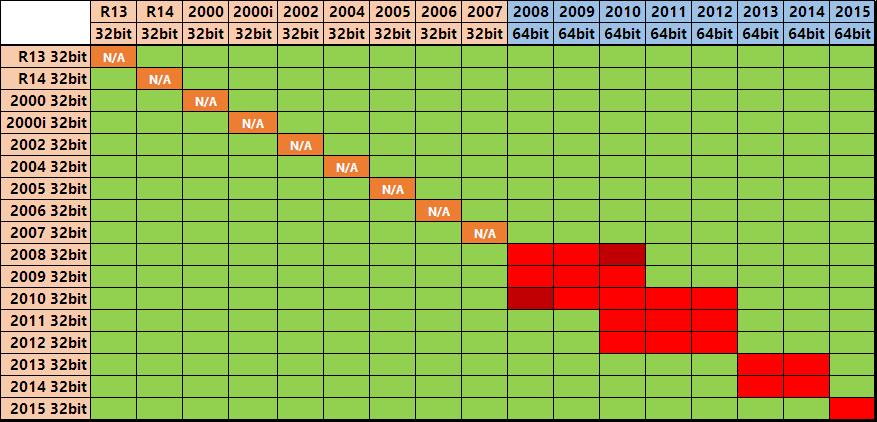
  • For best results, we recommend that you install only 32bit versions of AutoCAD on your computer system, however, mixing is possible with care – refer to the chart below if you must have the 64bit version installed on the same computer.

This chart shows which 32bit AutoCAD versions can be installed on the same system as 64bit AutoCAD versions…

  • Green means Should be OK
  • Red/Dark Red means Problems will occur, you should not do this
AutoCAD 32bit 64bit side by side configurations

Shows which versions of 32bit AutoCAD can be installed side by side to 64bit versions of AutoCAD

Copyright 2015 (c) Longbow Software