If you are a seasoned AutoCAD LT 2002 user, no doubt you will at some point have run into the famous GEDIT 3 error and been very frustrated with it. That error occurs because of certain video card drivers and/or certain types of anti-virus software setups.
On Windows 10, Windows 7 and Windows 8, the GEDIT 3 error is even more prominent because of all the new security features that are inside of Windows 7 and 8. The good news is that it’s totally possible to eradicate the GEDIT 3 error by follow the instructions below:
How to install AutoCAD LT 2002
- Obtain your purchased copy of the Longbow Converter here
- Start the Longbow Converter tool
- Insert your AutoCAD CD into your CDRom drive
- Select the 2nd tab named “Old AutoCAD Installer Reviver“
- Using the “…” button, path the to your AutoCAD CD
- Click “Run Old Installer”
- Read and follow all the prompts
- Once the AutoCAD setup starts, stop and read the next step…
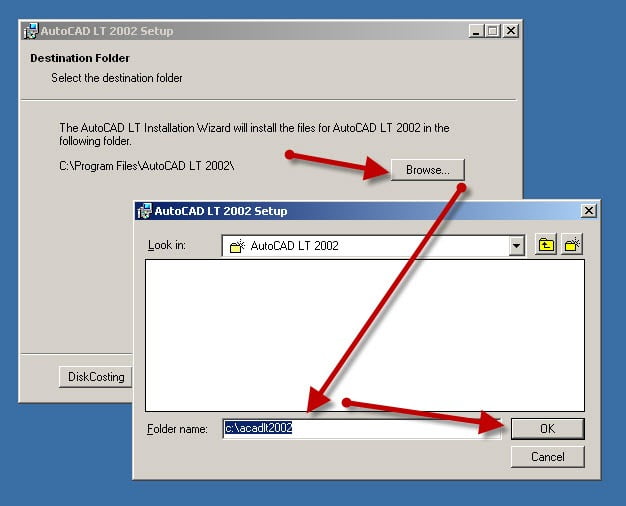
- In the setup program, navigate through each setup dialog as normal, except when you get to the installation folder – **it’s vitally important to make sure you install to c:\acadlt2002 (not Program Files (x86)\AutoCAD LT 2002 as usually prompted by default)**
- IMPORTANT NOTE: For AutoCAD 2002 you may find that entering the path C:\acadlt2002 may not take (a bug in the AutoCAD 2002 installer). In that case, you will need to select the installation folder C:\Program Files (x86)\AutoCAD LT 2002 in step (5) below
- Do not reboot if prompted to do so

- Once installed
- Once installed
- Do not reboot if asked to do so
- Make sure to fully close the setup program when the installation is complete.
- Back in the Converter app and make sure it’s completed the final stage of processing using the “Old AutoCAD Program Reviver” tab.
- Once installed
- Now run your AutoCAD LT 2002 and completely register as normal. Once registered, exit AutoCAD and continue to the next step.
- Next, obtain the AutoCAD LT 2002 sp1 from here unzip and save to c:\Autodesk\sp – do not install yet
- Next, obtain the AutoCAD LT 2002 sp2 from here (or AutoCAD LT 2002 sp2 locked version from here) and save to c:\Autodesk\sp – do not install yet
- Go back into the Converter
- select the 3rd tab named “Old AutoCAD Program Reviver”
- Using the “. . .” button, select the c:\Autodesk\sp folder
- click “Fix Old Program“.
- Now Install the LT 2002 sp1 by running c:\Autodesk\sp\acad2002LTsp1.exe
- IMPORTANT NOTE: If you get a 114 error, contact Longbow Software Support to get them to fix it for you.
- Next, install the LT 2002 sp2 by running either the unlocked c:\Autodesk\sp\acltk044-k047unl.exe or the locked c:\Autodesk\sp\acltk044-k047swl.exe
- IMPORTANT NOTE: If you get a 114 error, contact Longbow Software Support to get them to fix it for you.
- Finally, reboot your PC and run AutoCAD as normal.
Troubleshooting
- If you cannot install your AutoCAD LT 2002 Service Packs because of an error “114: Autocad LT 2002 update was not applied” – rather than try and solve this issue, the easiest solution is:
- To go back to your old Windows XP machine and make sure that all of the sp’s are installed on your old Windows XP machine’s installation of AutoCAD LT 2002
- Next, simply copy all of the AutoCAD LT 2002 program files and folders from your old Windows XP machine to a USB drive – copy the “contents” of C:\Program Files\AutoCAD LT 2002
- Now transfer the USB to your new machine and copy the files that were on your old Windows XP machine’s C:\Program Files\AutoCAD LT 2002 folder into your newly installed c:\acadlt2002 folder – you should see a question if you should overwrite all files, say YES
- If you have crashing problems using the File->Open or File->Save dialogs inside of AutoCAD please read this blog entry on the File->Open or File->Save Crash in AutoCAD
Copyright 2019 (c) Longbow Software