
Installing AutoCAD 2006 on Windows 11

If you are trying to install your old version of AutoCAD 2006 on Windows 11 you can run into lots of problems. Because there are so many issues, we created an App called the Longbow Converter to automatically smooth over installation and running issues for you. All you need to do is follow these steps to install your AutoCAD 2006 on Windows 11 and make it work…

IMPORTANT NOTE: Autodesk says that it no longer supports older versions of AutoCAD and, as part of that policy, no longer routinely provides activation codes for these releases. However, it is still possible to get your AutoCAD activated, we document all of your options  here

Ransomware Protection Windows 11 and AutoCAD

Just before we start note that Windows 11 comes with a Ransomware Protection which includes Controlled Folder Access. Controlled folder access blocks applications from writing to your Documents, Pictures, Videos, Music, Public and Favorites folders. AutoCAD versions all the way to AutoCAD 2021 write to certain user Public folders and are therefore blocked by this feature. This can cause issues with all sorts of things including activating your AutoCAD license and even running AutoCAD. Ransomware Protection is an important feature of Windows 11 but it will affect your AutoCAD unless you allow AutoCAD and its dependent applications access to the controlled folders.

How to install AutoCAD 2006 

A quick word of advice: please follow the instructions below precisely as documented (including using the same folder names and paths) as this will significantly reduce the risk of having any problems…
  1. If you don’t yet have a copy of the Longbow Converter App you can purchase it here or click on the download link we sent you via email in order to download the Converter App to your PC.
  2. Before installing the Converter App, make sure the files downloaded from our site are not blocked by Windows SmartScreen… Windows 11 is finicky, click the TLC zip first to make sure it’s fully selected then Right+click the file and select Properties. Be sure to check the Unblock checkbox as shown below and Click OK…
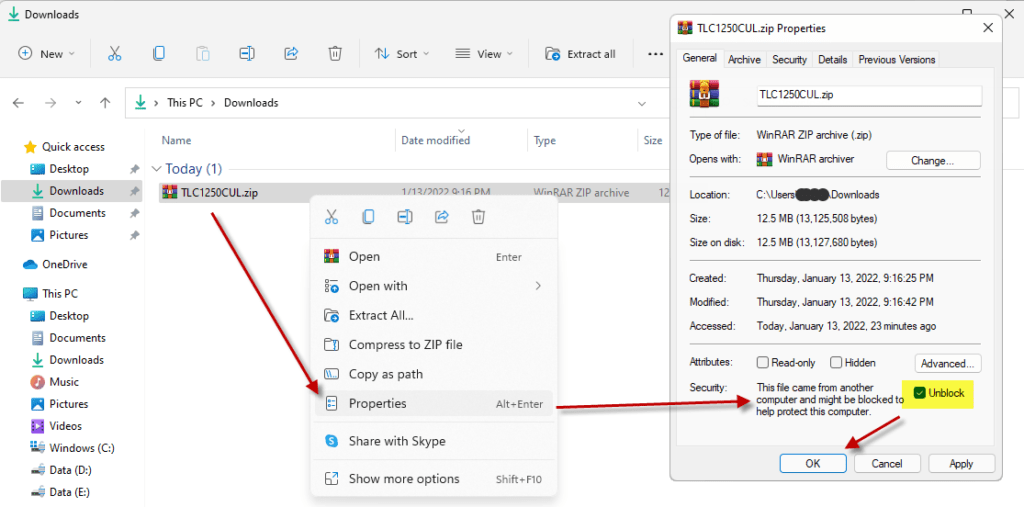
  3. Double click the zip file to open it and install the TLC application as normal. By the way, TLC stands for The Longbow Converter
  4. Now, start the Longbow Converter tool by double clicking the Longbow Converter shortcut on your Desktop…
  5. Start the Longbow Converter tool
    1. Insert your AutoCAD 2006 CD into your CDRom drive
    2. Select the 2nd tab named “Old AutoCAD Installer Reviver”
      1. Using the “…” button, path the to your AutoCAD 2006 CD
      2. Click “Run Old Installer”
        1. Read and follow all the prompts
        2. If you see a dialog stating “An App on your PC needs the following Windows Feature: .NET Framework 3.5 (includes .NET 2.0 and 3.0)” be sure to click “Download and install this feature” as this must be installed in order for the setup to run
        3. Once the AutoCAD 2006 setup starts, stop and read the next step…
  6. In the setup program, navigate through each setup dialog as normal, with these exceptions…
    1. When you click the Install link from your setup you may see a dialog box appear saying – “This program has compatibility issues” – simply check the “Don’t show this message again” and then click the “Run the program without getting help” button
    2. When you arrive at the installation folder path setup dialog, **it’s vitally important to make sure you install to c:\acad2006 (not Program Files (x86)\AutoCAD 2006)**.
    3. Once AutoCAD has installed
      1. completely close setup
      2. Go back to the Converter app and make sure it’s completed the final stage of processing using the “Old AutoCAD Program Reviver” tab
  7. Now reboot your PC and run your AutoCAD as normal
    1. NOTE: When starting AutoCAD, if you see a warning dialog when you run saying “This program has known compatibility issues”, simply click “Don’t show this message again” and then click “Run the Program…”

Troubleshooting

  1. If you are unable to activate your product, or the activation process crashes
    1. Autodesk says that it no longer supports older versions of AutoCAD and, as part of that policy, no longer routinely provides activation codes for these releases. However, it is still possible to get your AutoCAD activated, we document all of your options here
    2. Try uninstalling the July 2014 Microsoft security update
    3. Try downgrading your Internet Explorer (IE) from version 11 to version 10 by following the instructions detailed here
    4. Perhaps you have a SATA drive – Activation problems with AutoCAD 2006 and AutoCAD 2007
  2. If you have crashing problems using the File->Open or File->Save dialogs inside of AutoCAD please read this blog entry on the File->Open or File->Save Crash in AutoCAD
Copyright 2024 (c) Longbow Software

Authorization/Activation problems with AutoCAD 2006 and AutoCAD 2007

After you activate and then restart your Autodesk 2006 or 2007 product, you receive error 0.1.0011 or 11.1.6011 and are required to reactivate.

This problem can occur for Autodesk’s 2006/2007-based products on computers with SATA Raid controllers.

Note: This update must be applied to all computers that share a license. Therefore, if you apply this update to one computer and then want to use the Portable License Utility to transfer the license to another computer, be sure to install the update on that computer, too.

If this update is applied to a computer that does not have a SATA Raid controller, the license on that computer will be broken. You will need to reactivate the product to repair the license.

Affected Products

  • AutoCAD 2006/2007
  • AutoCAD Electrical 2006/2007
  • AutoCAD LT 2006/2007
  • AutoCAD Mechanical 2006/2007
  • Autodesk 3ds Max 8/9
  • Autodesk Architectural Desktop 2006/2007
  • Autodesk Building Systems 2006/2007
  • Autodesk Civil 3D 2006/2007
  • Autodesk Inventor Professional 10/11
  • Autodesk Inventor Series 10/11
  • Autodesk Land Desktop 2006/2007
  • Autodesk Map 3D 2006/2007
  • Autodesk Raster Design 2006/2007
  • Autodesk AutoCAD Revit Series 8.0 / Autodesk Revit Building 8.0
  • Autodesk AutoCAD Revit Series 8.1 / Autodesk Revit Building 8.1
  • Autodesk Revit Structure 1.0
  • Autodesk Survey 2006/2007
  • Autodesk Utility Design 2006/2007
  • Autodesk Viz 2006/2007

Installation Instructions

Autodesk 2006 products

  1. Close all applications and log in as Administrator.
  2. Download the AdskBindHotfix.zip file to a location on your local computer.
  3. On your local computer, unzip the AdskBindHotfix.zip and double-click the AdskBindHotfix.exe inside.

    A message will indicate when your product(s) have been successfully updated.

Autodesk 2007 products

  1. Close all applications and log in as Administrator.
  2. Download the BindHotfix_2007.zip file to a location on your local computer.
  3. On your local computer, unzip the BindHotfix_2007.zip and double click both of the .reg files within.
    1. Click Yes when prompted, “Are you sure you want to add this information…” for both .reg files.


Copyright 2015 (c) Longbow Software

Installing AutoCAD 2006 on Windows 7, Windows 8 and Windows 10

Follow these instructions to solve issues around installing/running your old AutoCAD 2006 on newer versions of 64bit Windows 7, Windows 8 and Windows 10

IMPORTANT NOTE: Autodesk says that it no longer supports older versions of AutoCAD and, as part of that policy, no longer routinely provides activation codes for these releases. However, it is still possible to get your AutoCAD activated, we document all of your options here

How to install AutoCAD 2006 

  1. Obtain your purchased copy of the Longbow Converter here
  2. Start the Longbow Converter tool
    1. Insert your AutoCAD CD into your CDRom drive
    2. select the 2nd tab named “Old AutoCAD Installer Reviver“
    3. Using the “…” button, path the to your AutoCAD CD
    4. Click “Run Old Installer”
      1. Read and follow all the prompts
      2. Once the AutoCAD setup starts, stop and read the next step…
  3. In the setup program, navigate through each setup dialog as normal, with these exceptions…
    1. When you click the Install link from your setup you may see a dialog box appear saying – “This program has compatibility issues”
      1. simply check the “Don’t show this message again”
      2. then click the “Run the program without getting help” button
    2. When you arrive at the installation folder path setup dialog, **it’s vitally important to make sure you install to c:\acad2006 (not Program Files (x86)\AutoCAD 2006)**.
  4. Once installed
    1. Do not reboot if asked to do so
    2. Make sure to fully close the setup program when the installation is complete.
    3. Back in the Converter app and make sure it’s completed the final stage of processing using the “Old AutoCAD Program Reviver” tab
  5. Finally, reboot your PC and run your AutoCAD as normal
    1. NOTE: When starting AutoCAD, if you see a warning dialog when you run saying “This program has known compatibility issues”
      1. Click “Don’t show this message again”
      2. then click “Run the Program…”

Installing AutoCAD 2006 Service Pack 1

  1. English Users, Download your English AutoCAD 2006 sp1 from here
    1. Non-English users, Download your language specific AutoCAD 2006 sp1 from here
  2. Now copy your newly downloaded sp (for English users the filename is AutoCAD2006SP1.exe) to folder path c:\Autodesk\sp
  3. Start the Converter App
    1. select the 3rd tab named “Old AutoCAD Program Reviver“
    2. Using the “. . .” button, pick the c:\Autodesk\sp folder
    3. click “Fix Old Program“.
  4. Now you can run the service pack exe installer from Windows explorer as normal
  5. Once completed, now run your AutoCAD!

Troubleshooting

– If you see a warning dialog when you run AutoCAD saying “This program has known compatibility issues”, simply click “Don’t show this message again” and then click “Run the Program…”

– If you are unable to activate your product, or the activation process crashes:

– If you have crashing problems using the File->Open or File->Save dialogs inside of AutoCAD please read this blog entry on the File->Open or File->Save Crash in AutoCAD

Copyright 2019 (c) Longbow Software