
Installing 32-bit AutoCAD LT 2013 on Windows 11

These instructions solve issues around installing/running your old AutoCAD 2013 on 64bit Windows 11. Some common issues are error messages like these

  • “This operating system is not supported by AutoCAD LT® 2013”
  • “You cannot install this product on the current operating system”
  • “You are attempting to use a 32-bit installer on a 64-bit operating system”
  • “This is a 32-bit AutoCAD LT® 2013. It cannot be installed on 64-bit Windows”
  • “FATAL ERROR: (0x7ff87b2f0005) c:\program files\autodesk\autocad lt 2013\acsceneoe.dbx“

You can automatically solve these problems using our Longbow Converter App, it fixes and manages the AutoCAD LT 2013 installation so that you can be up and running again… Follow these instructions:

Ransomware Protection Windows 11 and AutoCAD

Just before we start note that Windows 11 comes with a Ransomware Protection which includes Controlled Folder Access. Controlled folder access blocks applications from writing to your Documents, Pictures, Videos, Music, Public and Favorites folders. AutoCAD versions all the way to AutoCAD 2021 write to certain user Public folders and are therefore blocked by this feature. This can cause issues with all sorts of things including activating your AutoCAD license and even running AutoCAD. Ransomware Protection is an important feature of Windows 11 but it will affect your AutoCAD unless you allow AutoCAD and its dependent applications access to the controlled folders.

How to install AutoCAD LT 2013

  1. If you don’t yet have a copy of the Longbow Converter App you can purchase it here or click on the download link we sent you via email in order to download the Converter App to your PC.

  2. Before installing the Converter App, make sure the files downloaded from our site are not blocked by Windows SmartScreen… Windows 11 is finicky, click the TLC zip first to make sure it’s fully selected then Right+click the file and select Properties. Be sure to check the Unblock checkbox as shown below and Click OK…
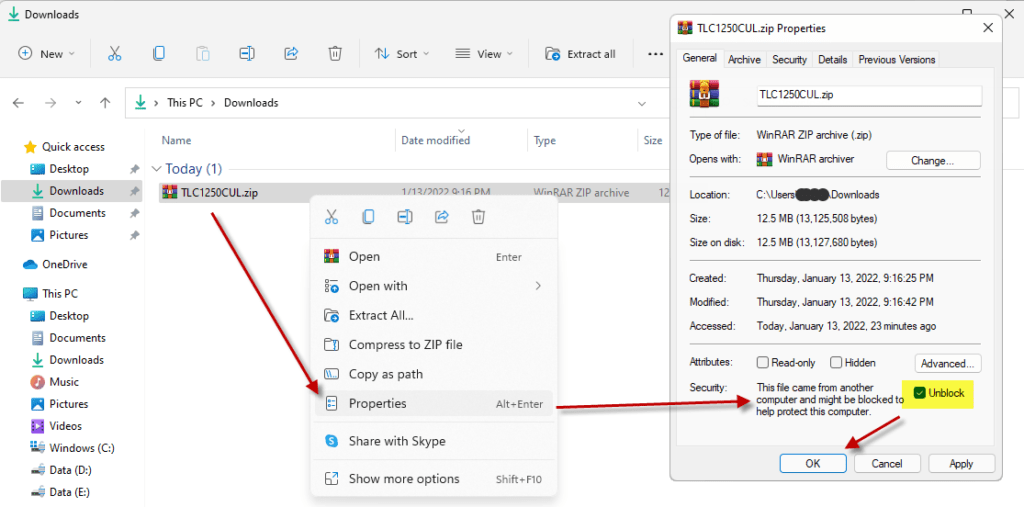
  3. Double click the zip file to open it and install the TLC application as normal. By the way, TLC stands for The Longbow Converter
  4. Obtain your purchased copy of the Longbow Converter here
  5. Start the Converter App and note the user interface
  6. Select the 1st tab named “AutoCAD 32bit Installer Converter“
    1. Using the “. . .” button, selection your AutoCAD installation CD
    2. Next, click the “Convert“ button and follow instructions
  7. Once the conversion process is complete
    1. click Install/Run Setup to start setup
    2. Simply install as normal, remembering to…
      1. Close the setup program when the installation is complete.
      2. Back in the Converter app and make sure it has completed the final stage of processing using the “Old AutoCAD Program Reviver” tab – it should be green stating “SUCCESS”
  8. Now run your AutoCAD as normal

Troubleshooting

  1. If you have crashing problems using the File->Open or File->Save dialogs inside of AutoCAD please read this blog entry on the File->Open or File->Save Crash in AutoCAD
Copyright 2024 (c) Longbow Software

Installing 64-bit AutoCAD LT 2013 on Windows 10 64-bit

Your 64bit AutoCAD LT 2013 was never designed to run in Windows 10 (this version of Windows is newer than AutoCAD LT 2013). In order for your AutoCAD LT 2013 to run as it did in previous versions of Windows, you need to follow these easy steps…

NOTE: These steps do not bypass normal Autodesk licensing/authorization, you should expect to use your own serial numbers in the normal way.

  1. Make sure all previous installed versions of AutoCAD 2013 are uninstalled first.
  2. Obtain your copy of the Longbow Converter here
  3. Start the Converter tool
    1. Pick the 1st tab named “AutoCAD 32bit Installer Converter“
    2. Using your mouse, right click the tab text “AutoCAD 32bit Installer Converter” so that it changes to “AutoCAD 64bit Installer Converter“
    3. Next, using the “…” button, select your AutoCAD installation CD and follow the instructions presented by the Converter tool user interface.

      NOTE: If the Converter does not recognize your because it is a single self extracting exe downloaded from Autodesk called something like AutoCAD_LT_2013_English_Win_64bit.exe, simply run the exe, it will ask to unzip to a folder inside of c:\Autodesk, make a note of the folder for later use (we’ll refer to it from here as c:\Autodesk\AutoCADLT2013), now click OK. Wait until all of the files have extracted, when they do, the AutoCAD LT 2013 setup will automatically launch – simply close it and move to the next step.

  4. Once you have completed the AutoCAD installation process…
    1. close the setup program then start the Converter software
    2. Select the 3rd tab “Old AutoCAD Program Reviver”
      1. Using the “…” button, pick the newly installed C:\Program Files\Autodesk\AutoCAD LT 2013 folder
      2. then click “Fix Old Program“
  5. Next install the AutoCAD LT 2013 sp2 from here
  6. Now you can happily run your AutoCAD LT 2013 64bit on Windows 10

Troubleshooting:

– If your AutoCAD crashes while interacting with the Ribbon click here

– If your AutoCAD is running really slowly, try disabling your integrated graphics card so you can run your high-performance card instead

– If you are unable to activate your product, or the activation process crashes:

– If you have crashing problems using the File->Open or File->Save dialogs inside of AutoCAD please read this blog entry on the File->Open or File->Save Crash in AutoCAD

Copyright 2017 (c) Longbow Software

Installing 32-bit AutoCAD LT 2013 on Windows 7, Windows 8 and Windows 10

NOTE: This blog post specifically solves issues related to these error messages on installation…

  • “This operating system is not supported by AutoCAD LT®”
  • “You cannot install this product on the current operating system”
  • “You are attempting to use a 32-bit installer on a 64-bit operating system”
  • “This is a 32-bit AutoCAD LT® 2013. It cannot be installed on 64-bit Windows”
  • “FATAL ERROR: (0x7ff87b2f0005) c:\program files\autodesk\autocad lt 2013\acsceneoe.dbx“

Installing AutoCAD LT 2013 32bit on Windows 7, Windows 8, Windows 8.1 or Windows 10 64bit can be very easily defined in these short steps…

NOTE: These steps do not bypass normal Autodesk licensing/authorization, you should expect to use your own serial numbers in the normal way.

  1. Make sure all previous installed versions of AutoCAD 2013 are uninstalled first.
  2. Obtain your copy of the Longbow Converter here
  3. If you have CDs (if not check (3) below):
    1. Using Windows Explorer, copy Disk 1 of your AutoCAD LT 2013 CD to your hard drive, to a folder path c:\Autodesk\AutoCADLT2013
    2. If you have more CD’s, copy them all directly over the top of Disk 1, overwrite all files in your previously copied c:\Autodesk\AutoCADLT2013 folder
  4. If you have a single self extracting exe downloaded from Autodesk called something like AutoCAD_LT_2013_English_Win_32bit.exe
    1. Simply run the exe, it will ask to unzip to a folder inside of c:\Autodesk, make a note of the folder for later use (we’ll refer to it from here as c:\Autodesk\AutoCADLT2013), now click OK. Wait until all of the files have extracted, when they do, the AutoCAD LT 2013 setup will automatically launch – simply close it and move to the next step.
  5. Now, start the Longbow Converter tool, select the 1st tab named ‘AutoCAD 32bit Installer Converter‘
    1. pick the c:\Autodesk\AutoCADLT2013 folder
    2. click the ‘Convert‘ button.
  6. Once the conversion process is complete
    1. Click ‘Install/Run Setup‘ to start setup
    2. Install as normal.
  7. Windows 8, Windows 8.1 and Windows 10 users: Once the installation process is complete…
    1. go back to the Converter, select the 3rd tab named ‘Old AutoCAD Program Reviver‘
    2. Pick the newly installed C:\Program Files (x86)\Autodesk\AutoCAD LT 2013 folder
    3. Click ‘Fix Old Program‘.
  8. Now you can happily run your AutoCAD LT 2013 32bit on Windows 7, Windows 8 and Windows 10!

Installing AutoCAD LT 2013 Service Packs

There are 2 sp’s for AutoCAD LT 2013, these are the 32bit versions of the sp’s

  1. Here’s sp1 – AutoCAD LT 2013 sp1 – install as normal
  2. Here’s sp2 – AutoCAD LT 2013 sp2 – install as normal

Troubleshooting:

– If your AutoCAD crashes while interacting with the Ribbon click here

– If you are unable to activate your product, or the activation process crashes:

– If you have crashing problems using the File->Open or File->Save dialogs inside of AutoCAD please read this blog entry on the File->Open or File->Save Crash in AutoCAD

Copyright 2015 (c) Longbow Software