Installing 32-bit AutoCAD LT 2012 on Windows 11

These instructions solve issues around installing/running your old AutoCAD 2012 on 64bit Windows 11. Some common issues are error messages like these

  • “This operating system is not supported by AutoCAD LT® 2012”
  • “You cannot install this product on the current operating system”
  • “You are attempting to use a 32-bit installer on a 64-bit operating system”
  • “This is a 32-bit AutoCAD LT® 2012. It cannot be installed on 64-bit Windows”

You can automatically solve these problems using our Longbow Converter App, it fixes and manages the AutoCAD LT 2012 installation so that you can be up and running again… Follow these instructions:

Ransomware Protection Windows 11 and AutoCAD

Just before we start note that Windows 11 comes with a Ransomware Protection which includes Controlled Folder Access. Controlled folder access blocks applications from writing to your Documents, Pictures, Videos, Music, Public and Favorites folders. AutoCAD versions all the way to AutoCAD 2021 write to certain user Public folders and are therefore blocked by this feature. This can cause issues with all sorts of things including activating your AutoCAD license and even running AutoCAD. Ransomware Protection is an important feature of Windows 11 but it will affect your AutoCAD unless you allow AutoCAD and its dependent applications access to the controlled folders.

How to install AutoCAD LT 2012

  1. If you don’t yet have a copy of the Longbow Converter App you can purchase it here or click on the download link we sent you via email in order to download the Converter App to your PC.
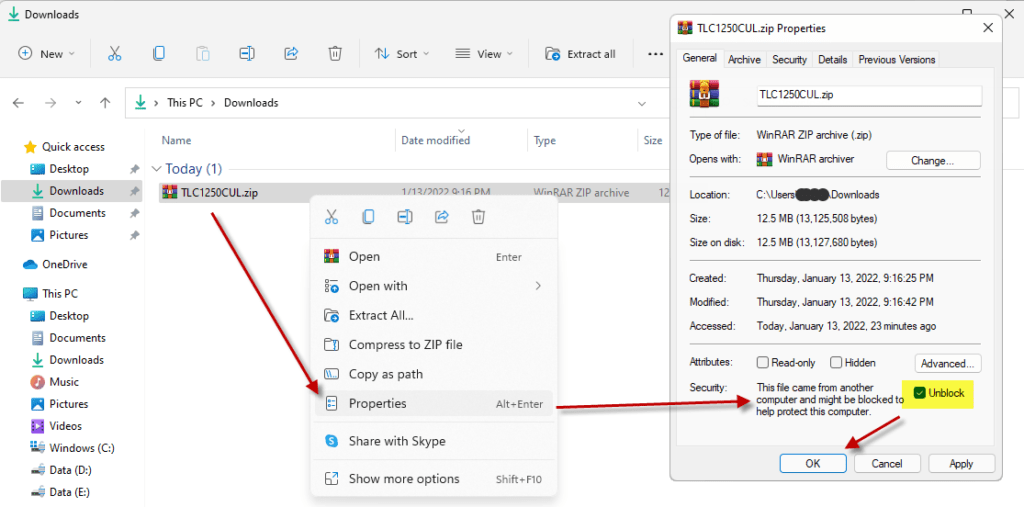
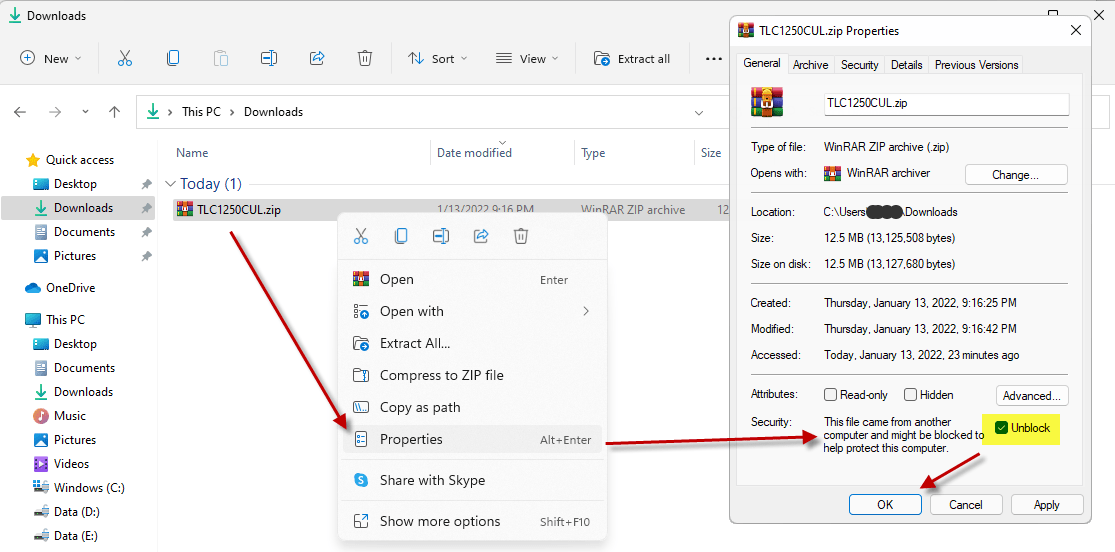
  2. Before installing the Converter App, make sure the files downloaded from our site are not blocked by Windows SmartScreen… Windows 11 is finicky, click the TLC zip first to make sure it’s fully selected then Right+click the file and select Properties. Be sure to check the Unblock checkbox as shown below and Click OK…
  3. Double click the zip file to open it and install the TLC application as normal. By the way, TLC stands for The Longbow Converter
  4. Obtain your purchased copy of the Longbow Converter here
  5. Start the Converter App and note the user interface
  6. Select the 1st tab named “AutoCAD 32bit Installer Converter“
    1. Using the “. . .” button, selection your AutoCAD installation CD
    2. Next, click the “Convert“ button and follow instructions
  7. Once the conversion process is complete
    1. click Install/Run Setup to start setup
      1. if you see a dialog stating “An App on your PC needs the following Windows Feature: .NET Framework 3.5 (includes .NET 2.0 and 3.0)” be sure to click “Download and install this feature” as this must be installed in order for the setup to run.
    2. Simply install as normal, remembering to…
      1. Close the setup program when the installation is complete.
      2. Back in the Converter app and make sure it has completed the final stage of processing using the “Old AutoCAD Program Reviver” tab – it should be green stating “SUCCESS”
  8. Now run your AutoCAD as normal

Installing AutoCAD 2012 Service Packs

We recommend that you download and install the latest Service Packs from Autodesk which can be found here

Troubleshooting

  1. If your AutoCAD crashes while interacting with the Ribbon click here
  2. If you are unable to activate your product, or the activation process crashes:
    1. Try uninstalling the July 2014 Microsoft security update
    2. Try downgrading your Internet Explorer (IE) from version 11 to version 10 by following the instructions detailed here
  3. If you have crashing problems using the File->Open or File->Save dialogs inside of AutoCAD please read this blog entry on the File->Open or File->Save Crash in AutoCAD
Copyright 2022 (c) Longbow Software

Installing AutoCAD 2007 on Windows 11

If you are trying to install your old version of AutoCAD 2007 on Windows 11 you can run into lots of problems. Because there are so many issues, we created an App called the Longbow Converter to automatically smooth over installation and running issues for you. All you need to do is follow these steps to install your AutoCAD 2007 on Windows 11 and make it work…

IMPORTANT NOTE: Autodesk says that it no longer supports older versions of AutoCAD and, as part of that policy, no longer routinely provides activation codes for these releases. However, it is still possible to get your AutoCAD activated, we document all of your options  here

Ransomware Protection Windows 11 and AutoCAD

Just before we start note that Windows 11 comes with a Ransomware Protection which includes Controlled Folder Access. Controlled folder access blocks applications from writing to your Documents, Pictures, Videos, Music, Public and Favorites folders. AutoCAD versions all the way to AutoCAD 2021 write to certain user Public folders and are therefore blocked by this feature. This can cause issues with all sorts of things including activating your AutoCAD license and even running AutoCAD. Ransomware Protection is an important feature of Windows 11 but it will affect your AutoCAD unless you allow AutoCAD and its dependent applications access to the controlled folders.

How to install AutoCAD 2007 

A quick word of advice: please follow the instructions below precisely as documented (including using the same folder names and paths) as this will significantly reduce the risk of having any problems…
  1. If you don’t yet have a copy of the Longbow Converter App you can purchase it here or click on the download link we sent you via email in order to download the Converter App to your PC.
  2. Before installing the Converter App, make sure the files downloaded from our site are not blocked by Windows SmartScreen… Windows 11 is finicky, click the TLC zip first to make sure it’s fully selected then Right+click the file and select Properties. Be sure to check the Unblock checkbox as shown below and Click OK…
  3. Double click the zip file to open it and install the TLC application as normal. By the way, TLC stands for The Longbow Converter
  4. Now, start the Longbow Converter tool by double clicking the Longbow Converter shortcut on your Desktop…
  5. Start the Longbow Converter tool
    1. Insert your AutoCAD 2007 CD into your CDRom drive
    2. Select the 2nd tab named “Old AutoCAD Installer Reviver”
      1. Using the “…” button, path the to your AutoCAD 2007 CD
      2. Click “Run Old Installer”
        1. Read and follow all the prompts
        2. If you see a dialog stating “An App on your PC needs the following Windows Feature: .NET Framework 3.5 (includes .NET 2.0 and 3.0)” be sure to click “Download and install this feature” as this must be installed in order for the setup to run
        3. Once the AutoCAD 2007 setup starts, stop and read the next step…
  6. In the setup program, navigate through each setup dialog as normal, with these exceptions…
    1. When you click the Install link from your setup you may see a dialog box appear saying – “This program has compatibility issues” – simply check the “Don’t show this message again” and then click the “Run the program without getting help” button
    2. When you arrive at the installation folder path setup dialog, **it’s vitally important to make sure you install to c:\acad2007 (not Program Files (x86)\AutoCAD 2007)**.
    3. Once AutoCAD has installed
      1. completely close setup
      2. Go back to the Converter app and make sure it’s completed the final stage of processing using the “Old AutoCAD Program Reviver” tab
  7. Now reboot your PC and run your AutoCAD as normal
    1. NOTE: When starting AutoCAD, if you see a warning dialog when you run saying “This program has known compatibility issues”, simply click “Don’t show this message again” and then click “Run the Program…”

Installing AutoCAD 2007 Sp1

To install the sp for your AutoCAD…
  1. Download and unzip the AutoCAD 2007 Sp1
  2. Copy the autocad2007sp1.exe to folder path c:\Autodesk\sp
  3. Start the Converter, select the 3rd tab, pick the c:\Autodesk\sp folder and click Fix.
  4. Now you can run the autocad2007sp1.exe from Windows explorer and install normally.
  5. Next install sp2 just below…

Installing AutoCAD 2007 Sp2

To install the sp for your AutoCAD…
  1. Download and unzip the AutoCAD 2007 Sp2
  2. Copy the autocad2007sp2.exe to folder path c:\Autodesk\sp
  3. Start the Converter, select the 3rd tab, pick the c:\Autodesk\sp folder and click Fix.
  4. Now you can run the autocad2007sp2.exe from Windows explorer and install normally.

Troubleshooting

  1. If you are unable to activate your product, or the activation process crashes
    1. Autodesk says that it no longer supports older versions of AutoCAD and, as part of that policy, no longer routinely provides activation codes for these releases. However, it is still possible to get your AutoCAD activated, we document all of your options here
    2. Try uninstalling the July 2014 Microsoft security update
    3. Try downgrading your Internet Explorer (IE) from version 11 to version 10 by following the instructions detailed here
    4. Perhaps you have a SATA drive – Activation problems with AutoCAD 2006 and AutoCAD 2007
  2. If you have crashing problems using the File->Open or File->Save dialogs inside of AutoCAD please read this blog entry on the File->Open or File->Save Crash in AutoCAD
Copyright 2022 (c) Longbow Software

Installing 32-bit AutoCAD 2012 on Windows 11

These instructions solve issues around installing/running your old AutoCAD 2012 on 64bit Windows 11. Some common issues are error messages like these

  • “This operating system is not supported by AutoCAD® 2012”
  • “You cannot install this product on the current operating system”
  • “You are attempting to use a 32-bit installer on a 64-bit operating system”
  • “This is a 32-bit AutoCAD® 2012. It cannot be installed on 64-bit Windows”

You can automatically solve these problems using our Longbow Converter App, it fixes and manages the AutoCAD 2012 installation so that you can be up and running again… Follow these instructions:

IMPORTANT NOTE: Autodesk says that it no longer supports older versions of AutoCAD and, as part of that policy, no longer routinely provides activation codes for these releases. However, it is still possible to get your AutoCAD activated, we document all of your options  here

Ransomware Protection Windows 11 and AutoCAD

Just before we start note that Windows 11 comes with a Ransomware Protection which includes Controlled Folder Access. Controlled folder access blocks applications from writing to your Documents, Pictures, Videos, Music, Public and Favorites folders. AutoCAD versions all the way to AutoCAD 2021 write to certain user Public folders and are therefore blocked by this feature. This can cause issues with all sorts of things including activating your AutoCAD license and even running AutoCAD. Ransomware Protection is an important feature of Windows 11 but it will affect your AutoCAD unless you allow AutoCAD and its dependent applications access to the controlled folders.

How to install AutoCAD 2012

IMPORTANT NOTE: Autodesk says that it no longer supports older versions of AutoCAD and, as part of that policy, no longer routinely provides activation codes for these releases. However, it is still possible to get your AutoCAD activated, we document all of your options  here

  1. If you don’t yet have a copy of the Longbow Converter App you can purchase it here or click on the download link we sent you via email in order to download the Converter App to your PC.
  2. Before installing the Converter App, make sure the files downloaded from our site are not blocked by Windows SmartScreen… Windows 11 is finicky, click the TLC zip first to make sure it’s fully selected then Right+click the file and select Properties. Be sure to check the Unblock checkbox as shown below and Click OK…
  3. Double click the zip file to open it and install the TLC application as normal. By the way, TLC stands for The Longbow Converter
  4. Obtain your purchased copy of the Longbow Converter here
  5. Start the Converter App and note the user interface
  6. Select the 1st tab named “AutoCAD 32bit Installer Converter“
    1. Using the “. . .” button, selection your AutoCAD installation CD
    2. Next, click the “Convert“ button and follow instructions
  7. Once the conversion process is complete
    1. click Install/Run Setup to start setup
      1. if you see a dialog stating “An App on your PC needs the following Windows Feature: .NET Framework 3.5 (includes .NET 2.0 and 3.0)” be sure to click “Download and install this feature” as this must be installed in order for the setup to run.
    2. Simply install as normal, remembering to…
      1. Close the setup program when the installation is complete.
      2. Back in the Converter app and make sure it has completed the final stage of processing using the “Old AutoCAD Program Reviver” tab – it should be green stating “SUCCESS”
  8. Now run your AutoCAD as normal

Installing AutoCAD 2012 Service Packs

We recommend that you download and install the latest Service Packs from Autodesk which can be found here

Troubleshooting

  1. If your AutoCAD crashes while interacting with the Ribbon click here
  2. If you are unable to activate your product, or the activation process crashes:
    1. Try uninstalling the July 2014 Microsoft security update
    2. Try downgrading your Internet Explorer (IE) from version 11 to version 10 by following the instructions detailed here
  3. If you have crashing problems using the File->Open or File->Save dialogs inside of AutoCAD please read this blog entry on the File->Open or File->Save Crash in AutoCAD
Copyright 2022 (c) Longbow Software

Installing AutoCAD 2004 on Windows 11

NOTE: We currently only support US unlocked versions of 2004 on 64bit OS. European or locked US support 2004 is limited only to 32bit Windows 11.

Follow these instructions to solve issues around installing/running your legacy AutoCAD 2004 on Windows 11

Ransomware Protection Windows 11 and AutoCAD

Windows 11 comes with a Ransomware Protection which includes Controlled Folder Access. Controlled folder access blocks applications from writing to your Documents, Pictures, Videos, Music, Public and Favorites folders. AutoCAD versions all the way to AutoCAD 2021 write to certain user Public folders and are therefore blocked by this feature. This can cause issues with all sorts of things including activating your AutoCAD license and even running AutoCAD. Ransomware Protection is an important feature of Windows 11 but it will affect your AutoCAD unless you allow AutoCAD and its dependent applications access to the controlled folders.

How to install AutoCAD 2004

A quick word of advice: please follow the instructions below precisely as documented including using the same folder names and paths. This will significantly reduce the risk of having any problems…
  1. If you don’t yet have a copy of the Longbow Converter App you can purchase it here or click on the download link we sent you via email in order to download the Converter App to your PC.
  2. Before installing the Converter App, make sure the files downloaded from our site are not blocked by Windows SmartScreen… Windows 11 is finicky, click the TLC zip first to make sure it’s fully selected then Right+click the file and select Properties. Be sure to check the Unblock checkbox as shown below and Click OK…
  3. Double click the zip file to open it and install the TLC application as normal. By the way, TLC stands for The Longbow Converter
  4. Start the Longbow Converter tool
    1. Insert your AutoCAD 2004 CD into your CDRom drive
    2. Select the 2nd tab named “Old AutoCAD Installer Reviver“
    3. Using the “…” button, pick your AutoCAD CD
    4. Click “Run Old Installer”
      1. Read and follow all the prompts
      2. Once the AutoCAD setup starts, stop and read the next step…
  5. In the AutoCAD setup program, navigate through each setup dialog as normal, with these exceptions…
    1. When you arrive at the installation folder path setup dialog…
      1. **it’s vitally important to make sure you install to c:\acad2004 (not Program Files (x86)\AutoCAD 2004)**. Now install…
      2. While installing…
        1. If you see an error in install “.NET Runtime Optimization Service has stopped working” – simply ignore by clicking the “Close Program” button
        2. Do not reboot if asked to do so
      3. Once installed
        1. Do not reboot if asked to do so
        2. Make sure to fully close the setup program when the installation is complete.
        3. Back in the Converter app and make sure it’s completed the final stage of processing using the “Old AutoCAD Program Reviver” tab
  6. Finally, reboot your PC and run your AutoCAD as normal
    1. NOTE: When starting AutoCAD, if you see a warning dialog when you run saying “This program has known compatibility issues”
      1. Click “Don’t show this message again”
      2. then click “Run the Program…”

Installing AutoCAD 2004 Sp1

To install the sp for your AutoCAD…
  1. Download your AutoCAD 2004 Sp1
  2. Copy the service pack exe installer to folder path c:\Autodesk\sp
  3. Start the Converter App
    1. select the 3rd tab named “Old AutoCAD Program Reviver“
    2. Using the “. . .” button, pick the c:\Autodesk\sp folder
    3. click “Fix Old Program“.
  4. Now you can run the service pack exe installer from Windows explorer as normal

Troubleshooting

  1. If you have crashing problems using the File->Open or File->Save dialogs inside of AutoCAD please read this blog entry on the File->Open or File->Save Crash in AutoCAD
  2. If while inserting Raster Images you only see an outline border/edge box displayed along with a message on the Command Line:

    Your system may not have enough temporary storage space to load the image file you have selected.

    To load <imagefile> you must increase the space available on drive C.

    Most likely, you have installed AutoCAD on a HDD that is larger than 2TB – partition your drive down to just less than 2TB and this will solve the issue.

Copyright 2025 (c) Longbow Software

Installing AutoCAD ADT 2000/2i on Windows 11

Users of AutoCAD Architectural Desktop 2i (aka AutoCAD ADT 2000) are very used to the software package and cannot do without it. With the latest hardware and required move to new Windows versions, trying to install your AutoCAD ADT 2000 gives an error like this one…

Windows 16bit setup error - This app can't run on your PC

Windows 16bit setup error – This app can’t run on your PC

Or maybe this error…

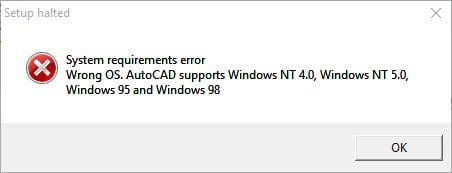
Setup Halted System requirements error Wrong OS, AutoCAD supports Windows NT 4.0, Windows NT 5.0, Windows 95 and Windows 98

Error trying to install AutoCAD ADT 2i on Windows 11

…all is not lost, just read on…

Ransomware Protection Windows 11 and AutoCAD

Just before we start note that Windows 11 comes with a Ransomware Protection which includes Controlled Folder Access. Controlled folder access blocks applications from writing to your Documents, Pictures, Videos, Music, Public and Favorites folders. AutoCAD versions all the way to AutoCAD 2021 write to certain user Public folders and are therefore blocked by this feature. This can cause issues with all sorts of things including activating your AutoCAD license and even running AutoCAD. Ransomware Protection is an important feature of Windows 11 but it will affect your AutoCAD unless you allow AutoCAD and its dependent applications access to the controlled folders.

How to install AutoCAD ADT 2000

A quick word of advice: please follow the instructions below precisely as documented including using the same folder names and paths. This will significantly reduce the risk of having any problems…
  1. If you don’t yet have a copy of the Longbow Converter App you can purchase it here or click on the download link we sent you via email in order to download the Converter App to your PC.
  2. Before installing the Converter App, make sure the files downloaded from our site are not blocked by Windows SmartScreen… Windows 11 is finicky, click the TLC zip first to make sure it’s fully selected then Right+click the file and select Properties. Be sure to check the Unblock checkbox as shown below and Click OK…
  3. Double click the zip file to open it and install the TLC application as normal. By the way, TLC stands for The Longbow Converter
  4. Now, start the Longbow Converter tool by double clicking the Longbow Converter shortcut on your Desktop… .
    1. Insert your AutoCAD ADT 2000 CD
    2. Select the 2nd tab titled “Old AutoCAD Installer Reviver” by clicking on it
    3. Next, using the ‘…’ button select your AutoCAD ADT 2000 CD
    4. Next, click the “Run Old Installer” button and follow the onscreen instructions. If all is well a dialog will appear stating success, simply click OK to start your AutoCAD setup.
  5. For AutoCAD ADT 2000, the Migration Wizard almost instantly pops up
    1. simply click “Install….” as normal.
    2. Now, I know it’s unheard of these days, but at this point expect to wait at least 45 minutes for your AutoCAD ADT 2000 setup.exe program to fully appear – please be patient
    3. Once the setup starts, stop and read the next step…
  6. In the setup program, navigate through each setup dialog as normal, except when you get to the installation folder **it’s vitally important to make sure you install to c:\adt2000 (not Program Files (x86)\AutoCAD Architectural Desktop as usually prompted)**  e.g.
    1. Once you have set the Destination Folder to c:\adt2000, install as normal by selecting the Typical install
    2. Ignore the error message that the shortcut cannot be created “Cannot create folder AutoCAD Architectural Desktop” you will need to create the program shortcut by hand once the installation is finished.
    3. Do not reboot if prompted to do so
  7. Once setup has completed…
    1. Make sure to fully close the setup program
    2. Back in the Converter App…
      1. make sure it has completed the final stage of processing using the “Old AutoCAD Program Reviver” tab – it should display “SUCCESS” in green…
  8. Now Reboot your PC
  9. Your AutoCAD ADT 2i is ready to run as it is right now, simply use Windows Explorer, navigate to c:\adt2000 and double click acad.exe (if you want a shortcut on the Desktop you will have to manually create it)

Installing AutoCAD 2000 Express Tools

If you rely on AutoCAD 2000 Express Tools or you are seeing “Missing Application: RTEXT” Proxy dialog when you are loading on a drawing, here are the instructions for installing Express Tools Volume 9 for AutoCAD 2000


Installing AutoCAD 2000 Service Pack 1

  1. Download AutoCAD 2000 sp1 from here
    1. Unzip the downloaded zip file to folder path c:\Autodesk\sp
  2. Start the Converter
    1. select the 2nd tab named “Old AutoCAD Installer Reviver“
    2. pick the c:\Autodesk\sp\AutoCAD 2000 sp1 folder
    3. click ‘Run Old Installer‘
    4. Wait for the setup to appear, it could take up to 45 minutes, then install as normal

Installing AutoCAD 2000 Service Pack 2

  1. Download AutoCAD 2000 sp2 from here
  2. Unzip the downloaded zip file to folder path c:\Autodesk\sp
  3.  
  4. Start the Converter
    1. select the 2nd tab named “Old AutoCAD Installer Reviver“
    2. pick the c:\Autodesk\sp\AutoCAD 2000 sp2 folder
    3. click ‘Run Old Installer‘
    4. Wait for the setup to appear, it could take up to 45 minutes, then install as normal

Installing AutoCAD 2000 3D Graphics System Update 1

If you use 3D a lot in AutoCAD 2000, you should read on to install the 3DUpdate…

  1. Download AutoCAD 2000 3D Graphics System Update1 from here
  2. Unzip your newly downloaded sp to folder path c:\Autodesk\update
  3. Start the Converter, select the 2nd tab, pick the c:\Autodesk\update folder and click ‘Run’
  4. Wait for the setup to appear, it could take up to 45 minutes, then install as normal.

NOTE: Some users have found that the 3D Graphics System Update runs through the install as normal but doesn’t actually update the modules. If you suspect this is true, contact Longbow Software Support.

Troubleshooting

  • If your AutoCAD ADT 2000 setup is not starting after 45 minutes
    • try rebooting, then restart the steps above. If it is still failing, most likely it’s because of another application on your system which is preventing our setup routine from starting (perhaps anti-virus, or similar) – try installing AutoCAD 2000 from Windows Safe Mode
  • If when you start AutoCAD, you see error messages about missing missing aclst15.dll or missing ACUTIL15.dll or missing ACDB15.dll or missing acge15.dll
    • In the Converter app Using the 3rd tab, pick your c:\adt2000 folder and click ‘Fix’. Then reboot…
    • If this doesn’t fix the problem, contact Longbow Software Support.
Copyright 2022 (c) Longbow Software

Installing AutoCAD 2000 on Windows 11

Most current AutoCAD 2000 users are very used to the software package and cannot do without it. With the latest hardware and required move to new Windows versions, trying to install your AutoCAD 2000 gives an error like this one…

Windows 16bit setup error - This app can't run on your PC

Windows 16bit setup error – This app can’t run on your PC

Or maybe this error…

Setup Halted System requirements error Wrong OS, AutoCAD supports Windows NT 4.0, Windows NT 5.0, Windows 95 and Windows 98

Error while trying to install AutoCAD 2000

…all is not lost, just read on…

Ransomware Protection Windows 11 and AutoCAD

Just before we start note that Windows 11 comes with a Ransomware Protection which includes Controlled Folder Access. Controlled folder access blocks applications from writing to your Documents, Pictures, Videos, Music, Public and Favorites folders. AutoCAD versions all the way to AutoCAD 2021 write to certain user Public folders and are therefore blocked by this feature. This can cause issues with all sorts of things including activating your AutoCAD license and even running AutoCAD. Ransomware Protection is an important feature of Windows 11 but it will affect your AutoCAD unless you allow AutoCAD and its dependent applications access to the controlled folders.

How to install AutoCAD 2000

A quick word of advice: please follow the instructions below precisely as documented including using the same folder names and paths. This will significantly reduce the risk of having any problems…
  1. If you don’t yet have a copy of the Longbow Converter App you can purchase it here or click on the download link we sent you via email in order to download the Converter App to your PC.
  2. Before installing the Converter App, make sure the files downloaded from our site are not blocked by Windows SmartScreen… Windows 11 is finicky, click the TLC zip first to make sure it’s fully selected then Right+click the file and select Properties. Be sure to check the Unblock checkbox as shown below and Click OK…
  3. Double click the zip file to open it and install the TLC application as normal. By the way, TLC stands for The Longbow Converter
  4. Now, start the Longbow Converter tool by double clicking the Longbow Converter shortcut on your Desktop… .
    1. Insert your AutoCAD 2000 CD
    2. Select the 2nd tab titled “Old AutoCAD Installer Reviver” by clicking on it
    3. Next, using the ‘…’ button select your AutoCAD 2000 CD
    4. Next, click the “Run Old Installer” button and follow the onscreen instructions. If all is well a dialog will appear stating success, simply click OK to start your AutoCAD setup.
  5. For AutoCAD 2000, the Migration Wizard almost instantly pops up
    1. simply click “Install 2000” as normal.
    2. Now, I know it’s unheard of these days, but at this point expect to wait at least 45 minutes for your AutoCAD 2000 setup.exe program to fully appear – please be patient
    3. Once the setup starts, stop and read the next step…
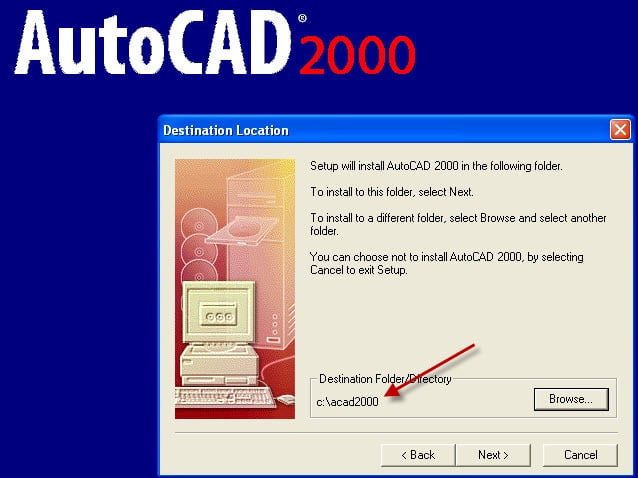
  6. In the setup program, navigate through each setup dialog as normal, except when you get to the installation folder **it’s vitally important to make sure you install to c:\acad2000 (not Program Files (x86)\AutoCAD 2000 as usually prompted)**  e.g.Setting AutoCAD 2000 custom install directory to c:\acad2000Setting AutoCAD 2000 custom install directory to c:\acad2000
    1. Once you have set the Destination Folder to c:\acad2000, install as normal by selecting the Typical install
    2. Ignore the error message that the shortcut cannot be created “Cannot create folder AutoCAD 2000“, you will need to create the program shortcut by hand once the installation is finished.
    3. Do not reboot if prompted to do so
  7. Once setup has completed…
    1. Make sure to fully close the setup program
    2. Back in the Converter App…
      1. make sure it has completed the final stage of processing using the “Old AutoCAD Program Reviver” tab – it should display “SUCCESS” in green…
  8. Now Reboot your PC
  9. Your AutoCAD 2000 is ready to run as it is right now, simply use Windows Explorer, navigate to c:\acad2000 and double click acad.exe (if you want a shortcut on the Desktop you will have to manually create it)

Installing AutoCAD 2000 Express Tools

If you rely on AutoCAD 2000 Express Tools or you are seeing “Missing Application: RTEXT” Proxy dialog when you are loading on a drawing, here are the instructions for installing Express Tools Volume 9 for AutoCAD 2000

Installing AutoCAD 2000 ObjectDBX Classes Object Enabler

  1. Download AutoCAD 2000 ObjectDBX Classes Object Enabler from here
  2. Unzip to folder path c:\Autodesk
  3. Start the Converter
    1. select the 2nd tab named “Old AutoCAD Installer Reviver“
    2. Using the “…” button, pick the c:\Autodesk\AutoCAD 2000 – ObjectDBX Classes Object Enabler folder
    3. click ‘Run Old Installer‘
    4. Install as normal

Installing AutoCAD 2000 AEC Object Enabler 2.11

  1. Download AutoCAD 2000 AEC Object Enabler 2.11 from here
  2. Unzip your newly downloaded sp to folder path c:\Autodesk\AutoCAD2000-AEC211
  3. Start the Converter
    1. select the 2nd tab named “Old AutoCAD Installer Reviver“
    2. Using the “…” button, pick the c:\Autodesk\AutoCAD2000-AEC211 folder
    3. click ‘Run Old Installer‘
    4. Wait for the setup to appear, it could take up to 45 minutes, then install as normal

Installing AutoCAD 2000 Architectural Object Enabler 3.02

  1. Download AutoCAD 2000 Architectural Object Enabler 3.02 from here
  2. Unzip and install as normal

Installing AutoCAD 2000 Service Pack 1

NOTE: Recommended only installing this sp if you really need it. Installing this service pack may break your AutoCAD because it may not match your specific AutoCAD CD. If it breaks, you will have to uninstall AutoCAD and reinstall again.

  1. Download AutoCAD 2000 sp1 from here
    1. Unzip the downloaded zip file to folder path c:\Autodesk\sp
  2. Start the Converter
    1. select the 2nd tab named “Old AutoCAD Installer Reviver“
    2. pick the c:\Autodesk\sp\AutoCAD 2000 sp1 folder
    3. click ‘Run Old Installer‘
    4. Wait for the setup to appear, it could take up to 45 minutes, then install as normal

Installing AutoCAD 2000 Service Pack 2

  1. Download AutoCAD 2000 sp2 from here
  2. Unzip the downloaded zip file to folder path c:\Autodesk\sp
  3. Start the Converter
    1. select the 2nd tab named “Old AutoCAD Installer Reviver“
    2. pick the c:\Autodesk\sp\AutoCAD 2000 sp2 folder
    3. click ‘Run Old Installer‘
    4. Wait for the setup to appear, it could take up to 45 minutes, then install as normal

Installing AutoCAD 2000 3D Graphics System Update 1

If you use 3D a lot in AutoCAD 2000, you should read on to install the 3DUpdate…

  1. Download AutoCAD 2000 3D Graphics System Update1 from here
  2. Unzip your newly downloaded sp to folder path c:\Autodesk\update
  3. Start the Converter, select the 2nd tab, pick the c:\Autodesk\update folder and click ‘Run’
  4. Wait for the setup to appear, it could take up to 45 minutes, then install as normal.

NOTE: Some users have found that the 3D Graphics System Update runs through the install as normal but doesn’t actually update the modules. If you suspect this is true, contact Longbow Software Support.

Troubleshooting

  • If your AutoCAD 2000 setup is not starting after 45 minutes
    • try rebooting, then restart the steps above. If it is still failing, most likely it’s because of another application on your system which is preventing our setup routine from starting (perhaps anti-virus, or similar) – try installing AutoCAD 2000 from Windows Safe Mode
  • If when you start AutoCAD, you see error messages about missing missing aclst15.dll or missing ACUTIL15.dll or missing ACDB15.dll or missing acge15.dll
    • In the Converter app Using the 3rd tab, pick your c:\acad2000 folder and click ‘Fix’. Then reboot…
    • If this doesn’t fix the problem, contact Longbow Software Support.
  • Plotting – if you are having plotting issues, either
  • If you see Proxy Warning Dialogs when you open a DWG using AutoCAD 2000, you need to install the service packs as described above.
  • If you are getting a WinHelp() error when pressing F1 to try and access the Help system then simply install the WinHelp (WinHlp32.exe) module from Microsoft
  • Issues with Calcomp Digitizer – Calcomp Digitizer not working
  • If you still see the error “Wrong OS, AutoCAD supports Windows NT 4.0, Windows NT 5.0, Windows 95 and Windows 98” even after converting
    • Copy the AutoCAD 2000 CD fresh to your computer, then start from step (1) again
    • If you still get the error, you need the latest version of the Longbow Converter tool
  • If you have crashing problems using the File->Open or File->Save dialogs inside of AutoCAD please read this blog entry on the File->Open or File->Save Crash in AutoCAD
Copyright 2022 (c) Longbow Software

Installing AutoCAD R14 on Windows 11

As an existing AutoCAD R14 user, you most likely cannot do without your beloved AutoCAD R14. With the latest hardware and required move to new Windows versions, trying to install your AutoCAD R14 gives an error like this one…

Windows 16bit setup error - This app can't run on your PC
Windows 16bit setup error – This app can’t run on your PC

or

 “FATAL ERROR: HEAP ERROR”

or

MEM_BAD_POINTER

…all is not lost, follow these instructions to install your R14 on Windows 11…

Ransomware Protection Windows 11 and AutoCAD

Just before we start note that Windows 11 comes with a Ransomware Protection which includes Controlled Folder Access. Controlled folder access blocks applications from writing to your Documents, Pictures, Videos, Music, Public and Favorites folders. AutoCAD versions all the way to AutoCAD 2021 write to certain user Public folders and are therefore blocked by this feature. This can cause issues with all sorts of things including activating your AutoCAD license and even running AutoCAD. Ransomware Protection is an important feature of Windows 11 but it will affect your AutoCAD unless you allow AutoCAD and its dependent applications access to the controlled folders.

How to install AutoCAD R14

A quick word of advice: please follow the instructions below precisely as documented including using the same folder names and paths. This will significantly reduce the risk of having any problems…

  1. If you don’t yet have a copy of the Longbow Converter App, choose a Longbow Converter licence or click on the download link we sent you via email in order to download the Converter App to your PC.

  2. Before installing the Converter App, make sure the files downloaded from our site are not blocked by Windows SmartScreen… Windows 11 is finicky, click the TLC zip first to make sure it’s fully selected then Right+click the file and select Properties. Be sure to check the Unblock checkbox as shown below and click OK…
    Windows file Properties showing the Unblock option
    1. Double click the zip file to open it and install the TLC application as normal. By the way, TLC stands for The Longbow Converter

    2. Once installed, start the Longbow Converter App…

      1. Now place your AutoCAD R14 CD in the CDRom Drive
      2. In the Converter App, select the 2nd tab named “Old AutoCAD Installer Reviver“
      3. Using the “. . .” button, select your AutoCAD R14 installation CD
      4. Next, click the “Run Old Installer” button and follow the onscreen instructions. If all is well a dialog will appear stating success, simply click OK to start your AutoCAD setup
        1. Now I know it’s unheard of these days, but at this point expect to wait up to 45 minutes for your AutoCAD R14 setup.exe program to appear, be patient – NOTE: do not continue with the install until reading the next step…
      5. Once the setup starts, stop and read the next steps all the way to the end! By the way, if your AutoCAD R14 setup does not start after 45 minutes, read the Troubleshooting section below.

    3. In the AutoCAD R14 setup program…
      1. navigate through each setup dialog as normal, with these exceptions…
        1. Make sure you do a Typical Install (not a Full Install)
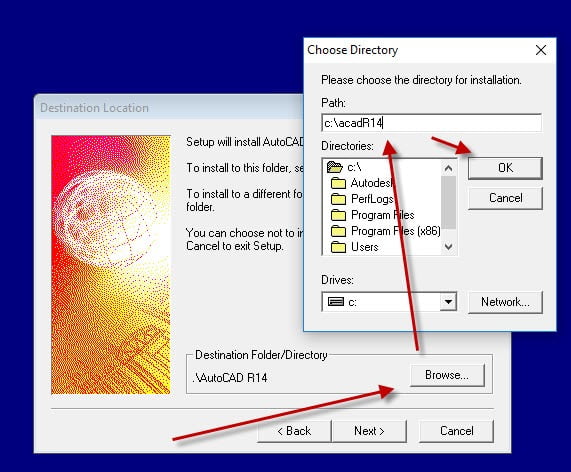
        2. When you get to the installation folder input dialog **it’s vitally important to make sure you install to c:\acadR14 (not Program Files\AutoCAD R14 as usually prompted)**
    AutoCAD R14 setup destination folder set to c:\acadR14
    You must change the install path to c:\acadR14
    1. Now carry on with the install
      1. Do not reboot once the install is complete
      2. Ignore any errors related to not being able to create the shortcut e.g. “Cannot Create folder ‘AutoCAD R14’“, you will have to create a shortcut on your computer Desktop to your c:\acadR14\acad.exe by hand.
      3. Again, do not reboot if prompted to do so
    2. Once your AutoCAD R14 setup has completed the installation…
        1. Make sure you fully close the setup program.
        2. Once the setup is closed the Converter will automatically fix the c:\acadr14 program files. You should see “Success!” displayed in the 3rd tab named “Old AutoCAD Program Reviver“
      1. Now reboot your PC
    3. You can now run your AutoCAD R14, using Windows Explorer, navigate to c:\acadR14 and double click acad.exe

    Troubleshooting

    1. If your AutoCAD R14 setup is not starting after 45 minutes…
      1. First try turning off UAC, rebooting, then restart the steps above.
      2. If it is still failing, most likely it’s because of another application on your system which is preventing our setup routine from starting (perhaps anti-virus, or similar) – try installing R14 from Windows Safe Mode
    2. If you are getting either a Bad Mem Pointer error and or a Smartheap handler recursively re-entered error when you start your AutoCAD R14 then you need to re-run all the steps above, taking care to do each step precisely as it says, most likely you are missing from step 5 or you have not installed to c:\acadR14 as stated in step (7) above.
    3. When starting AutoCAD, if you receive an ‘acad.exe – System Error’ message: The program can’t start because ac1st15.dll is missing from your computer. Try reinstalling the program to fix this problem. If you carried out step (7) above, then try rebooting your PC
    4. If you are getting a WinHelp() error when pressing F1 to try and access the Help system then simply install the WinHelp (WinHlp32.exe) module from Microsoft
    5. Issues with Calcomp Digitizer – Calcomp Digitizer not working
    6. If the setup displays an error message InstallError (IUO)               
      (X)  not enough space(IUO) try unplugging any External USB drives
    7. Plotting issues? If you get an error splwow64.exe “The application was unable to start correctly” with error “0xc0000005”
      1. Make sure your Anti-virus and/or Windows Firewall is not blocking splwow64.exe
      2. If the problem persists
        1. First, note that you need the latest version of the Converter App
        2. Start the Converter App
        3. Select the 3d tab “Old AutoCAD Program Reviver” 
        4. Click the Tools Menu->Reduced Power Mode
        5. Using the “…” button, pick your acad.exe folder e.g. c:\acadr14
        6. Click “Fix Old Program” and follow prompts
    8. If you have crashing problems using the File->Open or File->Save dialogs inside of AutoCAD please read this blog entry on the File->Open or File->Save Crash in AutoCAD

    Copyright 2022 (c) Longbow Software

    Upgrading your existing AutoCAD to Windows 10 and Windows 11

    So you have an old PC with a working copy of AutoCAD and you want to upgrade to Windows 10? STOP and read this whole blog first before you wipe your working PC…

    Autodesk License Activation for older versions of AutoCAD

    That’s right, Autodesk no longer support versions of AutoCAD (at the time of writing 2014 or earlier) which means that they will not give you a new authorization code. That means you will have to activate your AutoCAD license without Autodesk – you do have some options:

    1. First try activation via this offline process that Autodesk recently added
    2. If you have an activation code, try an Offline Activation 
    3. Transfer your existing AutoCAD license from your old PC to your new PC. Your AutoCAD install CD comes with utility to do the job, see below…

      NOTE: A good idea (before transferring the AutoCAD license from your old PC to the new PC) is to setup AutoCAD to run in offline mode then clone your old PC hard drive. This ensures you have a backup of your old PC with a valid license.

      NOTE: Apparently, the license transfer will fail if your license is invalid. Some examples we heard about failing are: it’s a USA license running in a different country or it’s an Education License or you used a serial number that was compromised

      1. AutoCAD 2009 or older – transfer license using the Autodesk Portable License Transfer Utility

        NOTE: AutoCAD 2006/2007
        users – you MUST install this patch so you do not lose your activation through a bug in the software once it is transferred to the new PC
      2. AutoCAD 2010 or newer – transfer license using the License Transfer Utility
    4. If you have an Autodesk Network licensing setup, keep it. Apparently, if you have this you are completely safe from shutdown and you can move to new systems without problems.
    5. Call Autodesk an explain your situation, we heard some people managed to get an activation code because their existing one was lost through software fault.
    6. Go back to an older version of AutoCAD. AutoCAD R13, R14, 2000, 2000i, 2002, 2004 and some versions of 2005 don’t require online activation therefore, as long as you have the original activation codes, they can still be used.
      • They all run perfectly on Windows 10, but you will need to install them using our Converter App (click for install instructions R13 R14 2000 2000i 2002 2004 2005)
      • If you have DWG files saved by newer versions of AutoCAD then simply use the free Autodesk DWGTrueview App (which is a cut down version of AutoCAD) to convert your DWG file save versions back to an earlier version.
    7. For information purposes only: There is an AutoCAD Keygen application online called “X-Force” which you can use to generate your authcode. NOTE: using a keygen is highly illegal when using hacked serial numbers, we don’t recommend it. Some ask if it is still illegal to use a keygen with a paid/valid serial number? You need to do your own legal checks on that question before using a keygen. 

    Is it possible to protect your working AutoCAD from losing its license?

    Yes. The latest version of our Converter App (12.30 or newer) has a new “Block Internet Connection” feature which disables all internet access to and from your AutoCAD, this makes it impossible for your AutoCAD license to be deactivated at some point in the future (with the disadvantage that you lose any internet based features in AutoCAD)

    Windows XP and Windows Vista AutoCAD users upgrading to Windows 10

    For those of you who are still running AutoCAD on Windows XP and want to upgrade to Windows 10, you will need to

    1. Get a new Windows 10 PC, preferably one without (or disabled) Intel onBoard graphics.
    2. Once you have a Windows 10 PC, run Windows Update until there are no more updates left to be installed.
    3. Next, install your AutoCAD using the Converter app…
      1. click on the version of AutoCAD you have (it explains all that you need to do) : AutoCAD R14 AutoCAD 2000 AutoCAD 2000i AutoCAD 2002 AutoCAD 2004 AutoCAD 2005 AutoCAD 2006 AutoCAD 2007 AutoCAD 2008 32bit AutoCAD 2009 32bit AutoCAD 2010 32bit AutoCAD 2011 32bit AutoCAD 2012 32bit AutoCAD 2013 32bit AutoCAD 2014 32bit 
      2. NOTE: If you can’t find your version listed, use the “Search” at the top left of this page
      3. Transfer the AutoCAD license as described above

    Windows 7, Windows 8 and Windows 8.1 AutoCAD users upgrading to Windows 10

    Here’s how to upgrade your PC to Windows 10 so that you can carry on using AutoCAD…

    1. Transfer your existing AutoCAD license from your old PC to your new PC. Your AutoCAD install CD comes with utility to do the job, see below… (A good idea is, before you transfer the AutoCAD license from your old PC to the new PC clone your old PC hard drive. This ensures you have a backup of your old PC with a valid license)
      1. AutoCAD 2009 or older – transfer license using the Autodesk Portable License Transfer Utility

        NOTE: AutoCAD 2006/2007 users – you MUST install this patch so you do not lose your activation through a bug in the software once it is transferred to the new PC
      2. AutoCAD 2010 or newer – transfer license using the License Transfer Utility
    2. Next, uninstall all AutoCAD versions on your system; it’s very important that you do this, if you don’t the Autodesk licensing system may get corrupted when you upgrade to Windows 10 at which point you will have to wipe the computer and start again.
    3. Now Upgrade to Windows 10
    4. Obtain the latest Longbow Converter supporting Windows 10 here
    5. Next, install your AutoCAD using the Converter app…
      1. click on the version of AutoCAD you have (it explains all that you need to do) : AutoCAD R14 AutoCAD 2000 AutoCAD 2000i AutoCAD 2002 AutoCAD 2004 AutoCAD 2005 AutoCAD 2006 AutoCAD 2007 AutoCAD 2008 32bit AutoCAD 2009 32bit AutoCAD 2010 32bit AutoCAD 2011 32bit AutoCAD 2012 32bit AutoCAD 2013 32bit AutoCAD 2014 32bit 
      2. If you can’t find your version listed, use the “Search” at the top left of this page
      3. AutoCAD 2006/2007 users – you MUST install this patch so you do lose your license activation randomly 
    • What happens if you already upgraded to Windows 8.1 with your existing AutoCAD installation – most likely your AutoCAD will not run, nor will you be able to repair it. The best thing to get your AutoCAD running again is to carry out a Windows Reset.

    Users of 32bit AutoCAD versions 2002 thru 2013 and running or Windows 7 upgrading to Windows 8.1

    If you have a working Windows 7 machine and you are thinking to upgrade to Windows 8.1 best just stay where you are. Better to upgrade to Windows 10, aside from being a free upgrade, it seems to be a much better platform too.

    With that said, if you must upgrade your working Windows 7 system to Windows 8.1, then it is of course possible using our Longbow Converter tool – you ***must*** first uninstall all AutoCAD products before doing the upgrade. Once Windows 8.1 has been installed, just use the Longbow Converter to re-install your 32bit AutoCAD software as before.

    • What happens if you already upgraded to Windows 8.1 with your existing AutoCAD installation – most likely your AutoCAD will not run, nor will you be able to repair it. The best thing to get your AutoCAD running again is to carry out a Windows Reset.

    Users of 64bit AutoCAD versions 2002 thru 2013 and running or Windows 7 upgrading to Windows 8.1

    If you have a working Windows 7 machine and you are thinking to upgrade to Windows 8.1 best just stay where you are. Better to upgrade to Windows 10, aside from being a free upgrade, it seems to be a much better platform too.

    With that said, if you must upgrade your working Windows 7 system to Windows 8.1, then it is of course possible using our Longbow Converter tool – you ***must*** first uninstall all AutoCAD products before doing the upgrade. Once Windows 8.1 has been installed, install your 64bit AutoCAD products as normal then use the Longbow Converter to fix all 64bit AutoCAD 2008 thru 2013 Windows 8 issues

    Copyright 2020 (c) Longbow Software