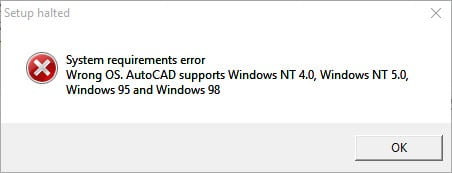
Trying to install your existing copy of AutoCAD 2007 on Windows 10, Windows 8 or Windows 7? Longbow Converter helps you install and run your existing copy of AutoCAD 2007 on Windows 10, 8 or 7, so you can keep working with the familiar software you used on Windows XP. AutoCAD runs directly in Windows, without needing a virtual machine or Virtual PC environment. Below you’ll find the installation steps, service packs, and guidance on choosing a Converter licence.
Using Windows 11? Follow our AutoCAD 2007 on Windows 11 guide.
Before you buy: installation and activation
You’ll need your own AutoCAD 2007 installation media and valid licence. Longbow Converter is a separate compatibility product; this page does not provide the full AutoCAD program or an AutoCAD licence. The service-pack downloads below are updates to an existing installation.
Missing your original installation media? You can search Internet Archive for AutoCAD 2007 media. These are third-party uploads that Longbow Software has not verified for authenticity, completeness, or safety.
Installation compatibility and Autodesk activation are separate questions. If your main problem is obtaining an activation code, or you are unsure whether your copy can be activated on another computer, ask Longbow Support before purchasing. Include your AutoCAD edition, Windows version, and the exact error message so we can help you identify the next step.
Which Longbow Converter licence do you need?
Home user or sole proprietor — $149.99
For private home or sole-proprietor business use within a single home local network. This is a network-based licence, not simply a single-seat licence. Check the product’s full terms before buying.
View Home / Sole Proprietor licence — $149.99
Company use — $399.99
If you will use Converter on a company-registered PC or an office/company network, review the Company licence rather than the Home licence.
View Company licence — $399.99
For other requirements, compare all Converter licences or ask us which licence fits. Product support is free; separately listed consulting services cover additional work. Confirm current pricing and full licence terms on the product page.
On this page: Installation steps · Service packs · Troubleshooting
Install AutoCAD 2007 with Longbow Converter
- Have your Longbow Converter licence and AutoCAD 2007 installation media ready.
- Start the Longbow Converter tool
- Insert your AutoCAD 2007 CD into your CDRom drive
- select the 2nd tab named “Old AutoCAD Installer Reviver“
- Using the “…” button, browse to your AutoCAD 2007 CD
- Click “Run Old Installer”
- Read and follow all the prompts
- Once the AutoCAD 2007 setup starts, stop and read the next step…
- In the setup program, navigate through each setup dialog as normal, with these exceptions…
- When you click the Install link from your setup you may see a dialog box appear saying – “This program has compatibility issues” – simply check the “Don’t show this message again” and then click the “Run the program without getting help” button
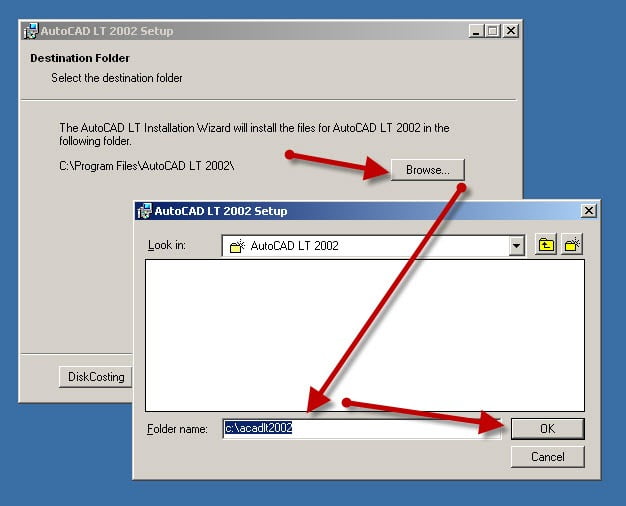
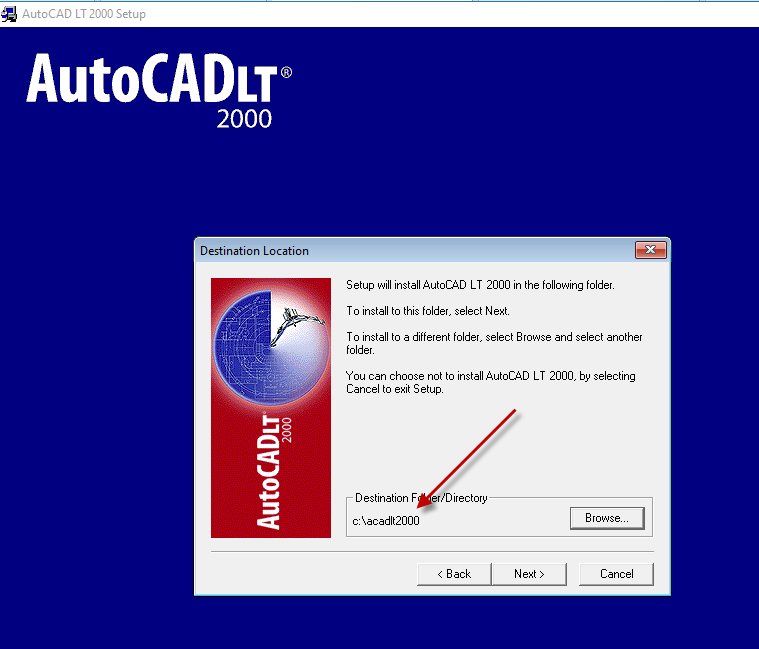
- When you arrive at the installation folder path setup dialog, **it’s vitally important to make sure you install to c:\acad2007 (not Program Files (x86)\AutoCAD 2007)**.
- Once AutoCAD has installed, completely close setup
- Now go back to the Converter app and make sure it’s completed the final stage of processing using the “Old AutoCAD Program Reviver” tab
- Finally, reboot your PC and run your AutoCAD as normal
- NOTE: When starting AutoCAD, if you see a warning dialog when you run saying “This program has known compatibility issues”, simply click “Don’t show this message again” and then click “Run the Program…”
Install AutoCAD 2007 Service Pack 1
To install the sp for your AutoCAD…
- Download and unzip the AutoCAD 2007 Sp1
- Copy the autocad2007sp1.exe to folder path c:\Autodesk\sp
- Start the Converter, select the 3rd tab, pick the c:\Autodesk\sp folder and click Fix.
- Now you can run the autocad2007sp1.exe from Windows explorer and install normally.
- Next install sp2 just below…
Install AutoCAD 2007 Service Pack 2
To install the sp for your AutoCAD…
- Download and unzip the AutoCAD 2007 Sp2
- Copy the autocad2007sp2.exe to folder path c:\Autodesk\sp
- Start the Converter, select the 3rd tab, pick the c:\Autodesk\sp folder and click Fix.
- Now you can run the autocad2007sp2.exe from Windows explorer and install normally.
Troubleshooting and help
AutoCAD won’t activate, or activation crashes
Tell support whether you are unable to obtain an activation code or whether the activation program itself is crashing. These require different advice. Include any error message and your Windows version when you contact Longbow Support.
AutoCAD crashes when opening or saving a file
See our AutoCAD File Open / File Save crash troubleshooting guide.
Moving an existing installation to another Windows version
Read our guide to upgrading a working AutoCAD installation before changing your system.